
Video Editing on a Budget: Best Practices for 2026
Learn best practices for video editing on a budget, including proxy workflows, codecs, and affordable hardware tips for efficient editing.
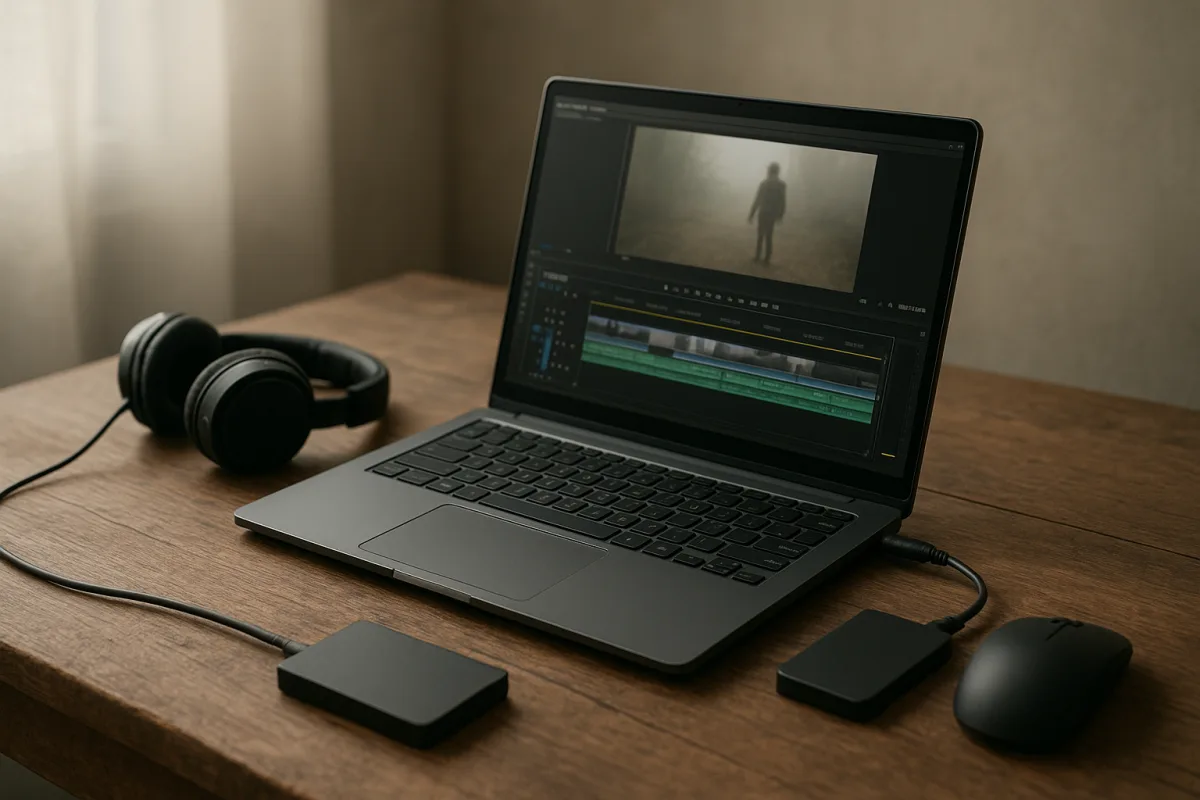
The cost-saving system is not a cheaper computer, it is proxy media
The expensive mistake is to judge a computer by whether it can play a camera original smoothly. That is the wrong job for most of the edit. The practical budget system is to keep originals safe, create lightweight proxy copies, and cut with those copies.
A proxy is not a lower-quality export of the finished film. It is a temporary stand-in linked to the original clip. You make editorial decisions from the stand-in, then reconnect or switch back to the original media for colour correction, VFX, and final export. [6]
That distinction matters because editing is mostly decision-making: finding takes, trimming dialogue, arranging sequences, and reviewing revisions. None of those tasks requires the timeline to decode full-resolution 4K camera files at their delivery quality.
The Post Flow’s proxy-workflow guidance puts the storage difference in useful terms. One hour of 4K ProRes 422 footage can take about 500GB, while proxies may need only 5GB to 20GB an hour, depending on resolution, codec, and compression. [6]
That is not merely a disk-space saving. A smaller, simpler proxy asks less of the CPU, GPU, RAM, and storage drive every time the playhead moves. It makes a modest machine feel faster because the timeline has less data to read and less compression to decode.
Where the money goes without proxies
A budget editor often sees dropped frames, assumes the computer is inadequate, then buys a faster GPU. Sometimes that is justified, especially for heavy colour work, noise reduction, or GPU effects. More often, the machine is being asked to decode media unsuitable for editing.
H.265, also called HEVC, is a common example. It can achieve roughly 40% to 50% better compression than H.264, with 4K delivery bitrates around 20Mbps to 35Mbps rather than H.264’s 40Mbps to 80Mbps. [16]
Those smaller HEVC files sound economical, but compression moves part of the cost into processing. HEVC encoding and decoding are more demanding than H.264. On lower-cost hardware, a tiny original file can therefore produce a sluggish timeline, delayed scrubbing, and longer exports. [16]
AV1 pushes that trade-off further. TV Technology reported that AV1 powered 30% of Netflix streaming content by December 2025, reflecting its strong compression efficiency. [8] That does not make AV1 a sensible default editing codec on an entry-level system.
AV1 can be around 30% to 50% more efficient than HEVC, but it is computationally demanding to encode and decode. [8] A budget workflow should not turn every edit into a codec benchmark. Use efficient delivery codecs when needed, but make editorial proxies easy to play.
H.264 is still the unglamorous practical choice. It is broadly compatible, comparatively gentle on hardware, and predictable across editing systems. [16] It makes larger files than HEVC or AV1, but proxy files are already small enough that this is usually a sensible exchange.
The arithmetic behind the upgrade you do not buy
A sensible 1080p editing machine needs, at minimum, a six-core Intel Core i5 or AMD Ryzen 5 processor, 16GB of DDR4 RAM, a dedicated GPU with 6GB of VRAM such as an Nvidia RTX 4050 or AMD Radeon RX 7600, and mixed SSD storage. [4] [10]
The component ranges in Creative Bloq and Tom’s Guide’s 2026 guidance put that class of system around $800 to $1,000 as a complete budget build. A 4K-oriented machine with an eight-to-12-core Intel Core i7, i9, AMD Ryzen 7, or Ryzen 9, 32GB RAM, and a 10GB-to-16GB GPU rises to roughly $1,500 to $2,000. [4] [10]
For heavier 4K work, the cited GPU options include Nvidia’s RTX 4060 Ti and AMD’s RX 7700 XT, at roughly $400 to $600. [4] If you grade demanding footage or use GPU-heavy effects, 16GB or more of VRAM is the safer target. [4]
But do the diagnosis first. If a 16GB, six-core computer stutters only with camera originals and becomes responsive with proxies, a $500 graphics-card upgrade does not solve a hardware deficiency. It pays to avoid a workflow problem you could fix in software.
RAM is the other frequent false economy. Tom’s Guide’s 2026 reporting treats 16GB as the floor for HD editing and 32GB or more as the more realistic amount for 4K and Fusion VFX work in DaVinci Resolve. [10] Proxy files help, but they do not replace enough memory.
The cost calculation is also less stable than old build guides suggest. The research brief notes global price pressure tied to AI demand, including Dell price increases of 17% and double-digit Lenovo hikes in early 2026. Hardware is not a fixed target, so avoiding an unnecessary upgrade has real value.
Build the proxy workflow around three storage tiers
Proxy editing works best when storage has assigned jobs. Put the active project, proxy files, cache, and current working media on a fast NVMe SSD. Cutback.video’s technical guide places NVMe performance around 1,500MB/s to more than 7,000MB/s, depending on the drive. [5]
Keep original camera media on fast local storage while the project is active if the budget permits. A 1TB NVMe drive plus a second 2TB NVMe drive is a practical 4K arrangement, though the combined storage allocation can cost roughly $300 to $500. [5]
After delivery, move originals and final masters to HDD archive storage. Hard disks cost about $15 to $25 per terabyte and deliver around 150MB/s, according to Cutback.video. [5] They are cheap bulk storage, not the place to run a multicam timeline or an effects-heavy project.
SATA SSDs sit in the middle. At roughly $50 to $70 per terabyte and about 550MB/s, they are a reasonable home for backups, less demanding active work, or a second copy of proxy media. [5] They are more durable than spinning disks, but slower than NVMe drives.
For editors moving between locations, Digital Camera World’s storage comparison lists Samsung’s T7 external SSD at about $220 for 1TB and PNY’s RP60 at about $150 for 1TB, both with quoted speeds around 2,000MB/s. [5] The Samsung T7 suits a portable premium workspace; the cheaper PNY RP60 suits a more constrained mobile budget.
Cloud storage is useful as an additional copy, not a substitute for local working media on a poor connection. Cutback.video notes that services such as IDrive can offer capacity up to 100TB, but the actual usefulness depends on upload speed, download speed, and the cost of waiting. [5]
How to make proxies without creating a relinking disaster
Start by creating a project folder before importing anything. Keep camera originals, proxies, audio, graphics, exports, and project backups in separate folders. Poor organisation creates the most avoidable cost in post-production: time spent finding, relinking, or re-importing media. [11] [12]
Import the original files first. Let the NLE create and manage the proxy relationship from that source media. Do not manually replace originals with small files and hope you remember what happened later. The point is a reliable link, not merely reduced file size.
Choose a proxy resolution that makes the timeline responsive while preserving enough detail to judge framing, focus, and interview takes. There is no universal preset supported by the research. The right setting varies with source resolution, frame rate, multicam demands, software, and the work itself. [6]
For a talking-head edit, a modest H.264 proxy can be entirely sufficient. For a project where reframing or checking focus is central, use a less aggressively reduced proxy. The question is simple: can you make accurate editorial decisions without forcing the computer to play originals?
Adobe Premiere Pro has dedicated ingest and proxy functions, and Sanbila’s 2026 Premiere Pro guidance focuses specifically on making proxies without filling the SSD. [7] In Premiere Pro, use the application’s proxy attachment and toggle system rather than treating proxies as ordinary duplicate clips.
DaVinci Resolve 21 also supports proxy workflows, alongside a substantial free feature set for editing, colour, audio, and VFX. [1] I have not tested every NLE named here, so treat the general logic as portable but check the current manual for the exact proxy controls in your version.
The final check is non-negotiable: switch back to camera originals before final colour, effects review, and export. Proxies save money because they are disposable working media. They must not become the accidental source for the master render.
Software cost matters because proxy workflows are long-term
Software choice changes the annual cost of this system. ToolRadar’s 2026 comparison lists DaVinci Resolve 21 as a free professional-grade option. DaVinci Resolve Studio is a $295 one-time purchase, adding features including AI noise reduction and HDR grading. [1]
That makes Resolve suitable for editors who need serious colour, audio, and VFX tools but want to avoid a recurring software bill. It does not mean every editor should switch. A team already built around Adobe projects, templates, and review processes may lose more time migrating than it saves.
Adobe Premiere Pro suits editors tied to the wider Adobe Creative Cloud ecosystem. It costs $22.99 per month on an annual plan, or $34.49 month to month, which makes the annual-plan total $275.88 before future price changes. [1] [9]
CapCut Pro is aimed at mobile and social-video work, with auto-captions, templates, and watermark removal. ToolRadar lists it at $7.99 monthly or $59.99 annually. [1] It suits short-form creators, though features previously available free have moved behind its paywall. [1]
Digital Camera World lists Movavi Video Editor 2026 at $23.95 monthly, $69.95 annually, or $99.95 as a one-time purchase. [3] Its subtitle generation and motion tracking suit beginners who want a simpler desktop editor and do not need a deep professional finishing system.
Veed.io suits browser-based collaboration and quick online production. Its free tier carries watermarks and a 10-minute video limit, while paid plans start at $12 monthly for higher-resolution output and collaboration features. [2] Its real cost depends heavily on whether your internet connection can handle cloud-based media work.
The budget rule is not that free software always wins. It is that the software, codec, proxy, storage, and computer must form one system. Spend once where the work requires it, especially on RAM and active storage. Use proxies so the rest of the system does not have to be expensive.
Frequently Asked Questions
How can I edit video on a budget without buying expensive hardware?
A practical budget approach is to keep your original high-resolution files safe and create lightweight proxy copies for editing. These proxies reduce the demand on your CPU, GPU, RAM, and storage, making even modest machines feel faster during editing. Focus spending on fast storage like NVMe SSDs for active projects rather than upgrading to a high-end workstation.
What are the best proxy workflows for budget video editing?
Create proxies before starting your edit, as proxies can reduce storage needs from about 500GB per hour for 4K ProRes 422 originals to 5–20GB per hour. Use proxies as temporary stand-ins for the originals during editing, then reconnect to the full-resolution files for color correction and final export. This workflow improves timeline responsiveness and lowers hardware strain.
Which codecs are best for video editing on low-cost computers?
H.264 is the recommended codec for proxies on budget systems because it is broadly compatible and less demanding on hardware than HEVC (H.265) or AV1. While HEVC and AV1 offer better compression, their heavier decoding requirements can cause sluggish playback and longer export times on cheaper computers.
How to save money on storage for video editing projects?
Spend on a fast NVMe SSD for your current active project files to ensure smooth editing performance, and use a larger, cheaper HDD for archiving completed projects. This combination saves more money than investing in a stronger GPU or oversized workstation, while maintaining efficient access to your media.
Is DaVinci Resolve free version good for budget video editing?
Yes, DaVinci Resolve 21’s free version provides professional-grade tools including color grading, audio, and VFX without recurring subscription costs. For additional features like AI noise reduction and HDR grading, the Studio version is available as a one-time purchase, offering a cost-effective alternative to subscription-based software.
How we researched this
This article was assembled from 16 cited references.
Nothing here is based on hands-on testing. Where a figure or finding appears, it belongs to the source cited beside it, and the writing says so rather than implying otherwise. Every source is listed below so you can check it.
Sources
- Best Video Editing Software 2026: Premiere Pro, DaVinci, CapCut Compared
- 7 AI video editing software for YouTubers in 2026
- Movavi Video Editor 2026: An affordable and feature-packed non-linear video editor
- The best graphics cards for video editing: the best choice for all budgets
- Technical Video Editing Guide: Storage, Audio, Formats & System Setup (2026)
- Proxy Workflows: What They Actually Fix - The Post Flow
- Premiere Pro proxy editing without filling your SSD (2026) | Sanbila
- AV1 Open Video Codec Now Powers 30% of Netflix Streaming
- Video Editors Without a Subscription - Onset Engine
- I edit video for a living - and this is how much RAM you need in 2026
- 10 Common Mistakes Beginners Make in Video Editing 2026 - Arraya Studios
- Video Editing Best Practices: A Complete Guide for 2026 | KlipFlow
- The Real Cost of a Video Edit: Software, Time, and What We Actually Charge For — VizEdits
- Video Editing Pricing: Rates, Packages & Retainers (2026)
- Creación de videos perfectos con IA: Exploración de los 10 mejores generadores de videos cortos con IA
- Video Compression for Content Creators: YouTube, TikTok, Instagram Reels, and More in 2026 | Optimage
Related Articles
Video Editing Proxies for Beginners: Tips and Best Practices
Learn video editing proxies for beginners with tips on codecs, resolutions, and workflows to optimize editing performance and quality.
Video Editing Techniques for Corporate Videos
Learn effective video editing techniques for corporate videos, including timelines, proxies, codecs, and color grading best practices.
Edit Video for Live Events
Learn how to edit video for live events with tips on timelines, proxies, codecs, syncing, and color grading for smooth, efficient post-production.
Post Production Budgeting for Video Editing
Learn how to create a post production budget for video editing, covering labor, proxies, codecs, color grading, and delivery requirements.