Best Video Editing Gear for Travel
Discover the best video editing gear for travel, including laptops, storage, and workflow tips for smooth editing on the go.
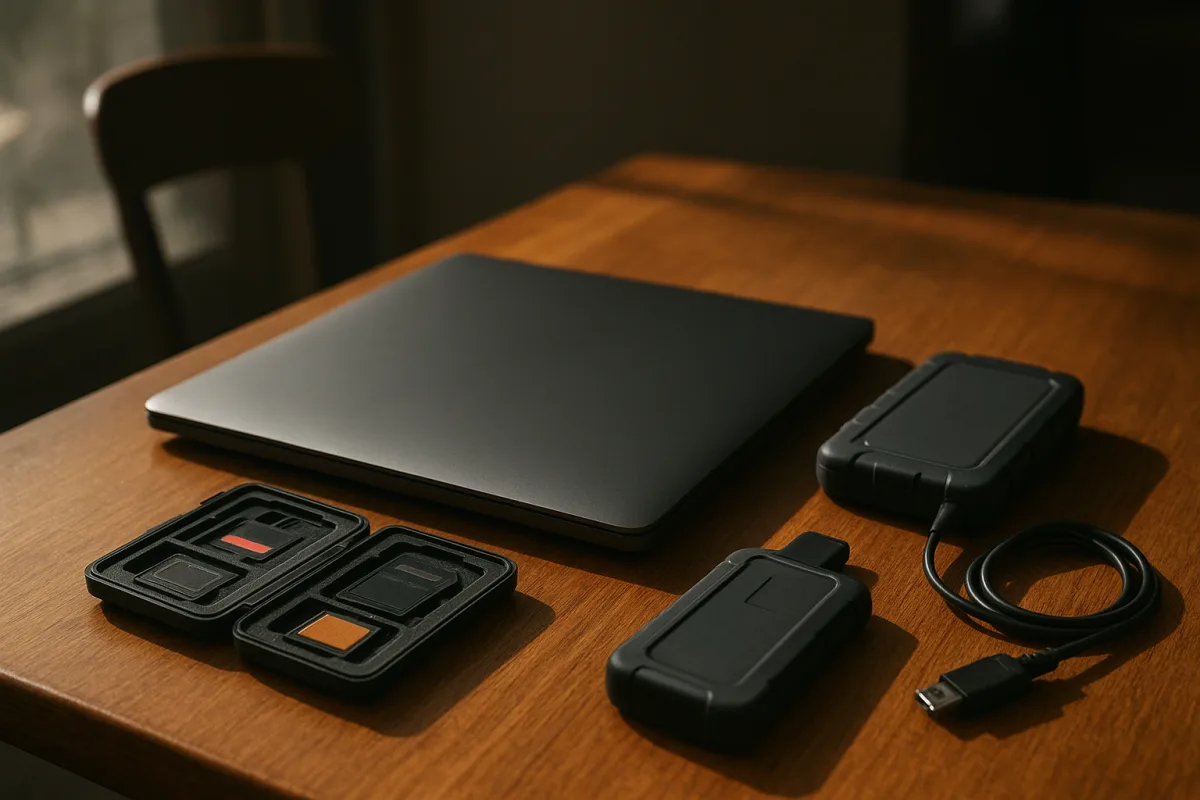
The decision: MacBook Pro 14-inch M5 or MacBook Air 15-inch M4?
For a travel videographer choosing one portable editing laptop, the real decision is not Mac versus Windows in the abstract. It is whether the Apple MacBook Pro 14-inch with M5 earns its premium over the Apple MacBook Air 15-inch with M4.
The MacBook Pro is the work-first choice. Tom’s Guide reports that its M5 chip includes a dedicated media engine, a useful distinction for editors dealing with compressed acquisition formats and frequent exports.
[1] The MacBook Air is the better value choice when the edit is lighter, the budget is tighter, and the larger 15-inch display improves the practical experience of cutting away from a proper monitor.
Neither is automatically “best.” A short social edit, a basic assembly, captions and review exports impose a different workload from a multicamera 4K edit with noise reduction, graphics and a deadline. That difference matters more than a spec-sheet hierarchy.
I have not handled either machine. This is a workflow-based recommendation drawn from the reported specifications and positioning in Tom’s Guide and Creative Bloq, not a claim of personal bench testing.
| Criterion | Apple MacBook Pro 14-inch M5 | Apple MacBook Air 15-inch M4 |
|---|---|---|
| Cost position | Premium, and the more expensive choice | Mid-range, cheaper than the MacBook Pro |
| Editing performance | Better fit for sustained professional editing, helped by the M5 media engine [[1]](https://www.tomsguide.com/best-picks/best-laptops-for-video-editing?utm_source=openai "The best laptops for video editing in 2026, tested by experts | Tom's Guide") |
| Timeline strategy | Sensible for native playback where the codec and effects load allow, while proxies remain prudent for difficult jobs | Use proxies early for dependable travel editing, especially with demanding 4K media |
| Screen and workspace | Smaller 14-inch workspace, easier to fit into a compact travel setup | Larger 15-inch screen is an advantage for timeline layout, bins and basic colour corrections |
| Portability | Portable professional form factor, but performance is the priority | Better suited to editors prioritising lighter, lower-cost travel carry |
| Battery expectations | Published maximums are not editing-day figures, expect substantially less during 4K work | The same warning applies, even if light office-style use looks excellent on paper |
| Best external storage pairing | SanDisk Extreme Pro or LaCie Rugged SSD Pro for faster, more resilient working media | ADATA SE800 for a value-conscious robust setup, or Samsung T7 when its speed is enough |
| Where it falls down | More cost than a straightforward travel edit may justify, and its 14-inch display is tighter for long sessions | Less headroom for heavy sustained edits, so it is easier to lose time if proxy creation is skipped |
| Best buyer | Professional editor who needs a mobile primary workstation | Solo creator or editor who wants a capable 4K travel machine without paying for maximum performance |
Performance: avoid buying your way around a proxy workflow
The MacBook Pro 14-inch M5 is the safer choice where the laptop has to be a working edit station, not merely a way to check rushes. The reported dedicated media engine is directly relevant to video work because decoding and encoding can dominate the day. [1]
That does not mean every timeline will play every camera format smoothly at full resolution. The research brief contains no direct evidence comparing specific codecs, NLEs, colour pipelines or proxy performance between these machines. It would be dishonest to promise native 8K or heavy RAW editing from either.
The time-saving travel fix remains ordinary: make proxies before the journey gets hectic, keep the proxy files with the project, and verify that the originals relink before delivery. The MacBook Pro gives more margin when that discipline slips. It does not remove the need for it.
Creative Bloq positions the MacBook Air 15-inch M4 as suitable for 4K editing and highlights the combination of M4 performance with a larger display. [20] That makes it credible for a single-camera 4K project, short-form work, selects, assemblies and lighter finishing.
Its limitation is sustained workload. If an edit includes long exports, effects-heavy sequences or repeated client revisions, a lower-cost machine can become expensive in time. A five-minute delay is nothing, until it happens after every round of changes in an airport lounge.
Screen space and colour: bigger is useful, accurate is not guaranteed
The MacBook Air’s 15-inch panel is its strongest practical argument. Extra physical screen area means more room for a timeline, bins, scopes and an inspector without constantly collapsing panels. On travel edits, that can be more useful than benchmark gains.
The MacBook Pro’s 14-inch format is easier to treat as a compact workstation, but the smaller view means more interface compromise. If the job is selecting interviews, trimming a rough cut and sending review links, the Air’s wider workspace may be the more pleasant machine.
Neither should be treated as a final colour-reference display without a defined monitoring setup. The supplied research does not establish calibrated-display accuracy, colour-management behaviour or HDR-monitoring suitability for these two Apple models. Use them for editorial judgement, then verify critical colour work appropriately.
For editors who specifically need a factory-calibrated OLED display and a Windows workflow, the Asus ProArt Studiobook 16 OLED sits in the premium field. DonanimKlinik reports an RTX 4070 GPU and factory-calibrated OLED display, positioning it for professional editing. [25] It suits colour-conscious Windows creators, but it is not the portable two-way decision here.
Battery and power: edit-day numbers are smaller than marketing numbers
The research brief lists the MacBook Pro 14-inch M5 at roughly 3.5 lb and says it can reach up to 20 hours under light workloads. That maximum should not be used to plan a production day. 4K decoding, rendering, bright screens and SSD activity cut runtime sharply.
Pack around actual wattage, not optimism. The brief puts laptop demand at roughly 60W to 140W depending on workload, while cameras typically consume 15W to 30W. A 95Wh V-mount battery may run a camera and monitor for only about an hour under heavy use.
For remote work, the brief recommends planning 500Wh to 1,000Wh for one day and 1,500Wh to 2,000Wh for multi-day use. Portable stations such as the VTOMAN FlashSpeed Pro 3600 and solar options including Anker SOLIX C200 and C300 are examples, not a universal system recommendation. [15][16][17]
Generators are less attractive for travel shoots because of noise and fumes. The more reliable move is to charge camera batteries, laptop and SSDs in stages, rather than assuming one power source will cover an editing session and tomorrow’s shoot.
Storage: choose the SSD for the job, not its casing colour
The Samsung T7 Portable SSD 1TB is the premium all-round working drive in this field. Ohio Drone LLC reports up to 1,050MB/s read and write speeds, enough for many 4K editing tasks. [27] It suits editors who need dependable portable media rather than the highest available transfer speed.
The SanDisk Extreme Pro Portable SSD 1TB is the faster premium alternative, reported at up to 2,000MB/s and built for tougher conditions. [28] It suits professionals transferring a lot of material between locations, though speed only helps when the laptop port, cable and source media can keep up.
The LaCie Rugged SSD Pro 1TB is also premium, with Thunderbolt 3 connectivity and reported resistance to drops, dust and water. [28] It suits demanding field editors who value ruggedness and throughput, but it may be unnecessary for a simple proxy-and-delivery workflow.
The G-Technology G-Drive Mobile SSD 1TB is another premium option, reported at up to 560MB/s and shock-resistant. [28] It suits creators who prioritise a compact, reliable transfer drive, though it has less performance headroom than the Samsung T7 or SanDisk Extreme Pro.
The ADATA SE800 Portable SSD 1TB occupies the mid-range value position. It is reported at up to 1,000MB/s and IP68-rated against dust and water. [28] It suits travellers who need weather resistance without stepping up to the fastest premium drives.
The Seagate One Touch SSD 1TB is the entry-level option, reported at up to 400MB/s and supplied with three years of Rescue Data Recovery Services. [28] It suits beginners handling basic edits and backups, but is the weakest choice here for high-resolution active project media.
Do not turn any single SSD into the only copy. Shoot onto multiple medium-capacity cards where possible, copy footage to at least two locations, and verify the copies before formatting cards. The research brief specifically identifies underestimating storage and neglecting backups as common travel mistakes. [23]
Climate is part of the kit specification
Heat can push laptops, SSDs and batteries toward throttling or damage. Use shade, avoid sealed bags sitting in direct sun, and carry insulated protection when moving between hot locations. The Dotworkz Cooldome is an example of a protective housing intended for extreme heat applications. [12]
Cold reduces battery performance and can make materials more brittle. Keep spare batteries close to your body or insulated until needed. A laptop that looked adequate in a warm indoor test can have a very different power profile on a winter location.
Humidity is the quiet failure mode. Moving cold gear into warm, wet air invites condensation, then corrosion or lens fungus over time. Airtight storage and desiccant packs are inexpensive workflow insurance, particularly when gear travels between air-conditioned rooms and tropical exteriors. [13][14]
The rest of the laptop field
The Lenovo IdeaPad Slim 3X is a mid-range, lightweight and affordable Windows option for basic editing. ClipVerdict reports a Snapdragon X processor and 16GB RAM. [26] It suits entry-level cuts, social exports and travel creators who value price and weight over advanced editing headroom.
The Acer Aspire Go 15 is the entry-level laptop in the field. ClipVerdict reports a Ryzen 7 7730U processor with 16GB RAM, describing it as decent for its price. [26] It suits beginners making simple projects, but it is not the choice for a deadline-sensitive professional 4K workflow.
For portable software, OpenShot 4.0.0 has reported proxy workflows, which makes it relevant to lower-powered travel computers. [5] Shotcut 26.8.1 is a cross-platform option with a native timeline. [7] Both suit editors who need offline, platform-flexible tools, though the supplied research does not compare their proxy reliability.
Sprocket is a cross-platform editor with professional ambitions, but it remains in alpha. [8] That status makes it unsuitable as the only application for a paid travel job unless you have a tested fallback. CutWire Drift is a simple free option with effects and auto captions, while Movavi Video Editor 2026 targets user-friendly drag-and-drop editing with AI tools. [9][11]
Who each option suits
The Apple MacBook Pro 14-inch M5 suits the travelling professional whose laptop must cut, organise, review and export real work on the road. Choose it if faster turnaround and greater performance headroom matter more than the larger display and lower cost of the Air.
The Apple MacBook Air 15-inch M4 suits the editor making 4K travel films, social work and lighter client projects who values a bigger screen and a more restrained spend. It falls down when sustained heavy timelines become normal rather than occasional.
The two are close for a disciplined proxy workflow. If you create proxies early, keep projects organised and use a suitable SSD, the Air can be the rational choice. If you routinely need to rescue a difficult timeline before boarding, the MacBook Pro is the safer decision.
Frequently Asked Questions
What is the best laptop for video editing while traveling?
The Apple MacBook Pro 14-inch with M5 chip is recommended for professional travel video editing, especially for sustained 4K timelines, colour work, and exports before flights. The Apple MacBook Air 15-inch with M4 is a better value option for lighter edits, offering a larger screen and lighter carry but less sustained performance.
How to manage proxies and codecs when editing videos on the go?
Creating proxies before travel is essential for smooth editing, particularly with demanding 4K media. Both laptops benefit from proxy workflows since native playback of all camera formats at full resolution is unlikely, and proxies help avoid delays during client revisions or effects-heavy sequences.
Which portable storage is best for travel video editing?
For the MacBook Pro 14-inch M5, SanDisk Extreme Pro or LaCie Rugged SSD Pro are recommended for fast and resilient media storage. For the MacBook Air 15-inch M4, ADATA SE800 offers a value-conscious rugged option, while Samsung T7 is suitable when speed is sufficient.
How to optimize video editing workflows during travel?
Plan to create proxies early and keep proxy files with the project to ensure smooth editing. Protect all workflow components—including cards and SSDs—from heat, cold, and humidity to prevent damage and data loss. Use a larger screen if possible to improve timeline layout and workspace efficiency.
What are the battery considerations for video editing gear on trips?
Published battery life figures are maximums under light workloads and will be substantially lower during active 4K editing, rendering, and charging. Expect reduced battery duration when running bright displays and heavy processing tasks, and plan power needs accordingly with portable power stations or solar chargers.
How we researched this
This article was assembled from 28 cited references.
Nothing here is based on hands-on testing. Where a figure or finding appears, it belongs to the source cited beside it, and the writing says so rather than implying otherwise. Every source is listed below so you can check it.
Sources
- The best laptops for video editing in 2026, tested by experts | Tom's Guide
- 8 Best Tablets for Video Editing (September 2026) Expert Reviewed
- Best Tablets for Video Editing (2026) – iPad, Android & Windows
- 12 Best External SSDs (2026) — Tested for Speed, Mac & PC
- OpenShot 4.0.0 Free Download - Video Editor Windows 10/11
- Shotcut 25.08 Video Editor Arrives with Key Fixes
- Shotcut 26.8.1 Download Free - VideoHelp
- Sprocket — Free, open source video editor
- Cut Video - Download - Softpedia
- Movavi Video Editor - Download - CHIP
- Movavi Video Editor 2026: An affordable and feature-packed non-linear video editor
- Dotworkz D2 Cooldome Extreme Heat Housing D2CD24DC24DCC B&H
- Weather-Proofing Gear: Rain, Dust, Heat, Cold
- How to Store Camera Gear (and Avoid Lens Fungus) | Wide Open Gear
- Portable Power for Photographers: Gear & Strategies for the Field - Anker US
- Silent Power Stations for Off-Grid Video Shoots
- Best Power Stations for Photographers, Videographers & Drone Operators 2026 | PoweredThrough
- Traveling With Photography Gear: The Complete Guide
- The best travel tripod: finest lightweight supports for your camera
- The best laptops for video editing: These powerhouses make editing a breeze
- 3 Best Compact Camera Stabilizers - TravelEstApp
- Travel Vlogging Gear Checklist: The Real-World Kit You Actually Need | Active Vlogger | Cameras, Audio, Lighting, and Vlogging Workflows
- 10 Travel Videography Mistakes That Kill Your Footage
- Travel Video Gear: A Field‑Tested, Lightweight Guide | Voyay Blog | Voyay
- Asus ProArt Studiobook 16 OLED
- Lenovo IdeaPad Slim 3X
- Samsung T7 Portable SSD 1TB
- SanDisk Extreme Pro Portable SSD 1TB
Related Articles
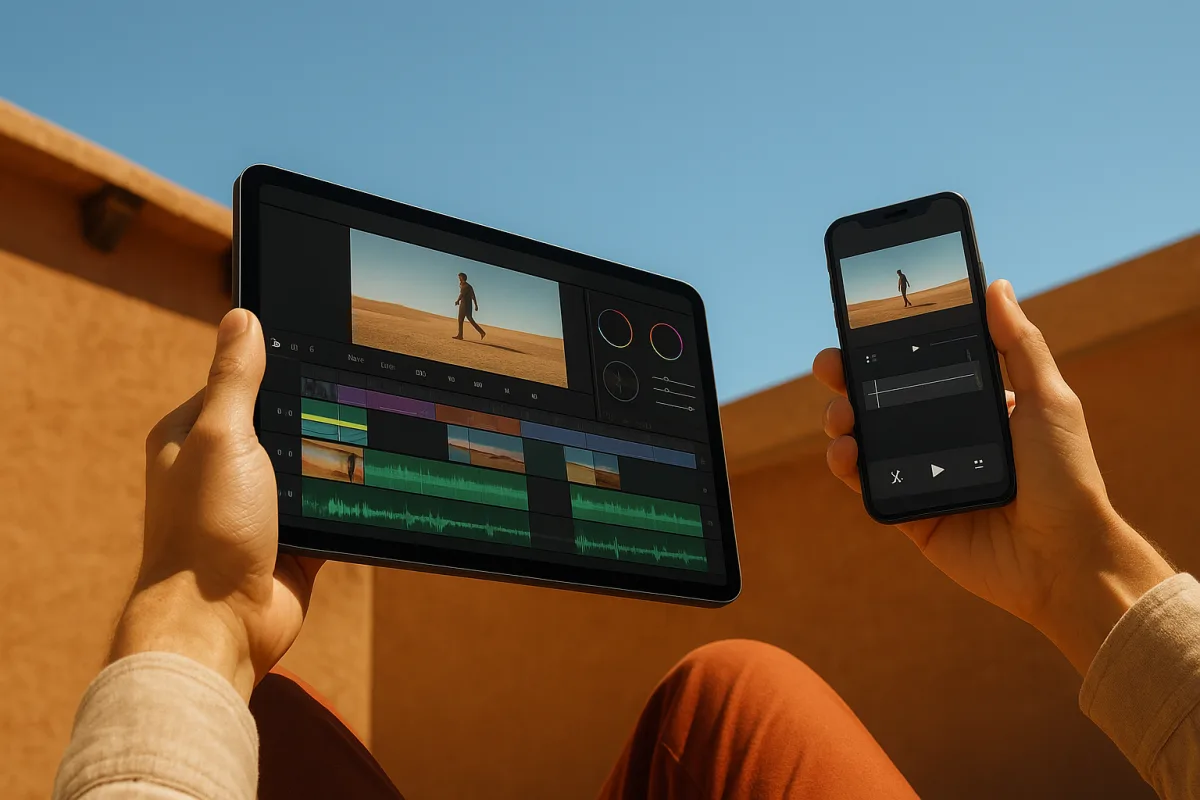
Best Video Editing Apps for Mobile
Compare the best video editing apps for mobile in 2026, focusing on CapCut and LumaFusion features, workflows, and performance tips.
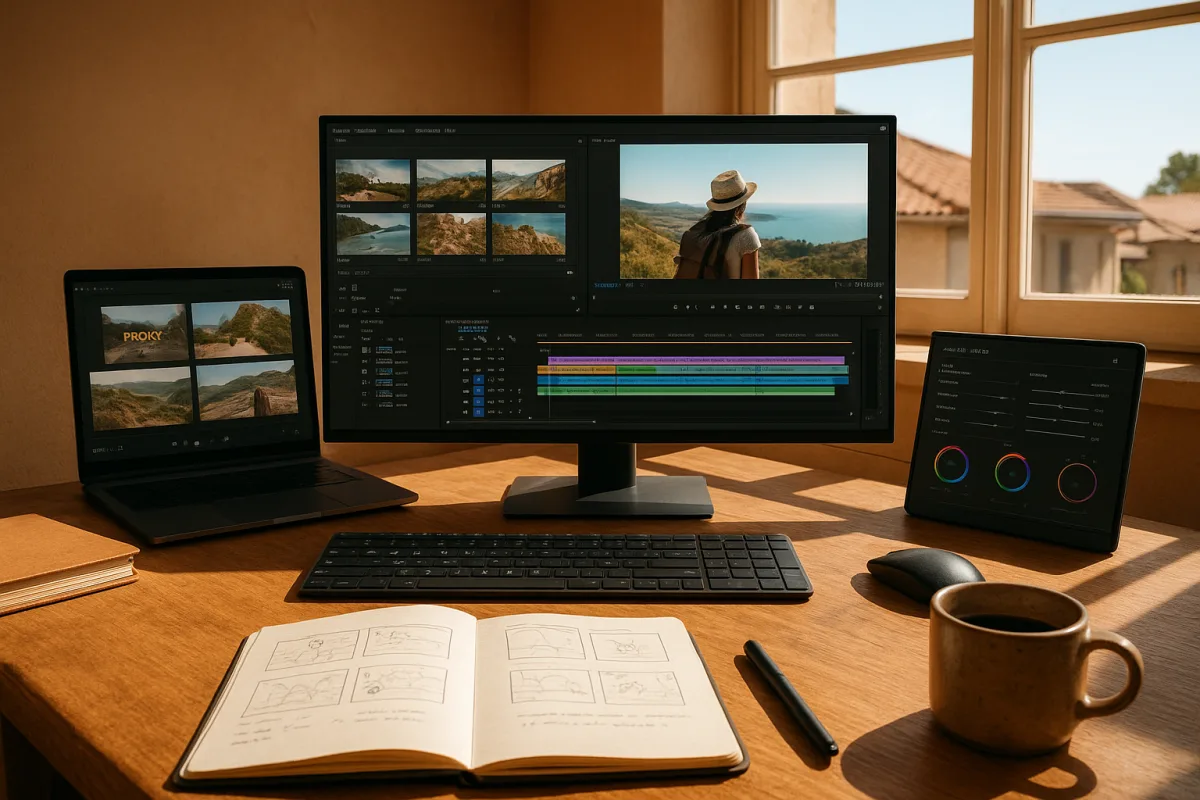
Travel Vlog Video Editing: Workflow, Proxies & Colour Tips
Learn travel vlog video editing with tips on workflow, proxies, colour grading, and pacing to create engaging travel videos efficiently.
Video Editing on a Budget: Best Practices for 2026
Learn best practices for video editing on a budget, including proxy workflows, codecs, and affordable hardware tips for efficient editing.
Video Editing Proxies for Beginners: Tips and Best Practices
Learn video editing proxies for beginners with tips on codecs, resolutions, and workflows to optimize editing performance and quality.