
Best Resolution for Video Conferencing: Why 1080p Works Best
Learn the best resolution for video conferencing and why 1080p at 30 fps is ideal for clear calls without bandwidth issues.
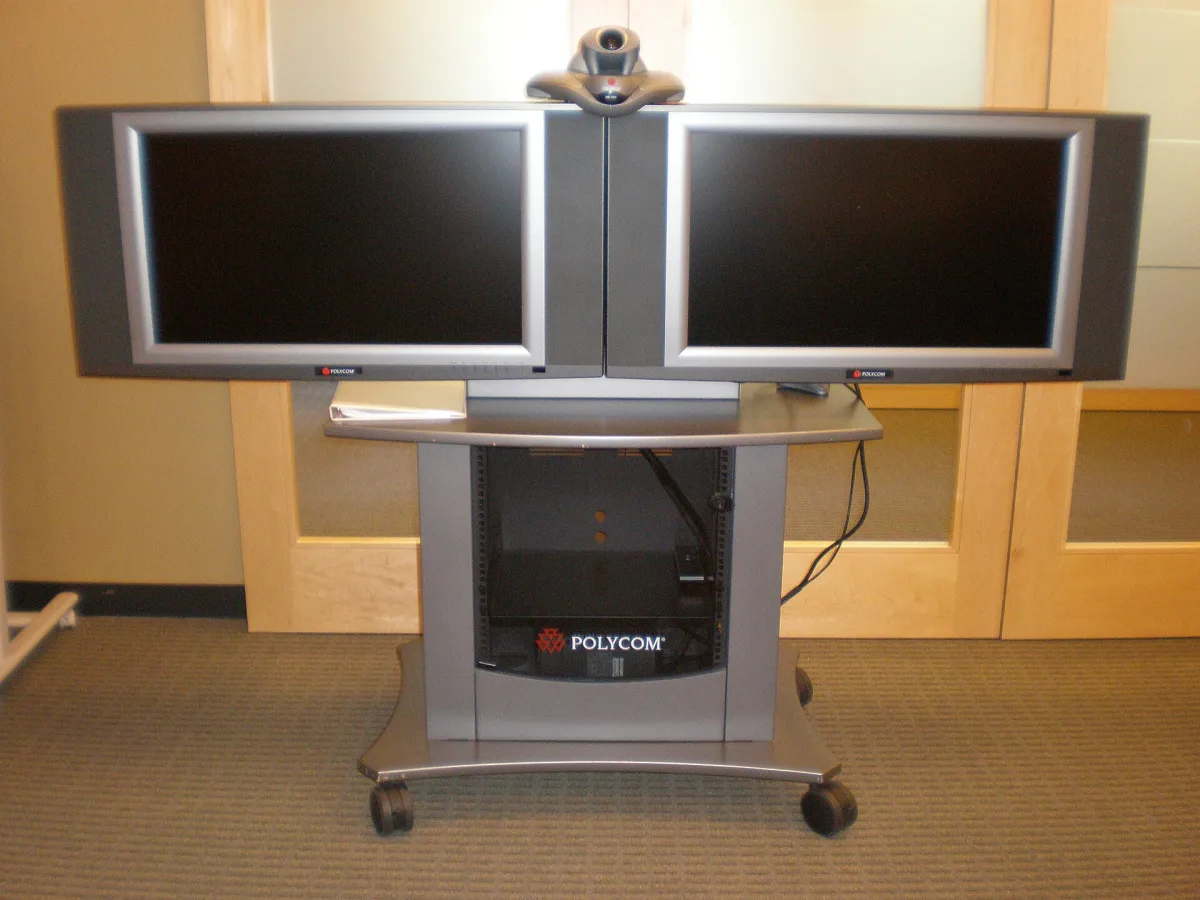
Photo: BrokenSphere, CC BY-SA 3.0, via Wikimedia Commons
The 1080p setting is the target, not the guarantee
The 1080p option in your webcam control panel looks like a finished answer: 1920 by 1080 pixels, a familiar full-HD frame. For clear video conferencing, it is the right target, typically at 30 frames per second. [1]
That target is not necessarily what other people receive. A conferencing call is a live delivery system, not a camera recording. Your camera captures an image, your app compresses it, your connection sends it, and the platform adapts it for each participant.
The best resolution for video conferencing is therefore 1080p at 30 fps only when the entire chain can sustain it. A 4K camera, a fast laptop, or a phone with an impressive rear camera cannot force a platform or network to deliver 4K. [2][17]
Think of 1080p as the working master for a call. It gives the service enough image detail for faces, text, and a modestly wide frame without asking the connection to carry a 4K file in real time.
We would start by selecting 1080p and 30 fps wherever the conferencing app and camera settings allow it. Then we would test the actual call condition, because delivered resolution, not the sensor specification on the box, decides whether you look clear.
Resolution has to survive the trip
A video call begins with capture, but capture is only the first handoff. The webcam sends frames to the computer, the conferencing app encodes those frames into a compressed stream, and your upload connection sends that stream to the platform.
The platform then distributes streams to everyone in the meeting. It may provide different participants with different versions of your video, depending on their connection and the meeting layout. This is why one attendee can see a clean image while another sees a softer one.
Video platforms use adaptive behavior to maintain a stable call. They dynamically adjust bitrate and resolution in response to current network conditions, prioritizing continuity when the connection cannot reliably carry the higher-quality stream. [15]
That is usually the correct trade. A lower-resolution image that stays locked to your audio is preferable to a nominally sharper image that stalls, turns blocky, or repeatedly reconnects.
Participant count adds pressure because conferencing bandwidth needs scale with resolution and the number of people involved. TechTarget reports that Zoom 1080p group calls can require about 3.8 Mbps upload and 3.0 Mbps download per user. [3]
Pro Video Conferencing gives a slightly different set of guidance: about 3.0 Mbps upload and 2.5 to 3.0 Mbps download for Zoom 1080p group calls. It lists Microsoft Teams at 2.5 Mbps upload and 4 Mbps download for video meetings. [2]
Use those figures as connection targets, not promises of a fixed picture. They describe bandwidth requirements under stated call conditions, while real calls also contend with household traffic, Wi-Fi quality, other participants, and the platform’s own adaptation choices.
Your upload speed deserves more attention than a headline download figure. The outgoing camera feed starts with your connection, so weak upload capacity can limit everyone else’s view even if your incoming video appears acceptable.
Why 4K rarely reaches the meeting
A 4K webcam captures four times as many pixels as 1080p. That can be valuable for recording, reframing, or a workflow where you control the final export, but ordinary conferencing services place a limit between that sensor and the people watching.
Zoom, Microsoft Teams, and Google Meet generally transmit video at 1080p or below because of bandwidth demands and meeting-layout constraints. Under those conditions, 4K capture provides little practical advantage for a standard call. [2]
The HP Poly Studio R30 is one example of hardware capable of 4K capture. Its capability does not mean a typical conferencing platform will send a 4K image to the rest of the meeting. [18][2]
This is the classic mismatch between acquisition and delivery. A camera can collect a detailed 4K image, while the service encodes a 1080p or lower stream to keep many participants connected across inconsistent networks.
We would not buy a 4K camera solely to improve routine calls. Spend first on stable connectivity and front lighting, because both affect the delivered image more directly than pixels that the conferencing platform may discard.
A 4K camera can still be a reasonable purchase if you also record presentations or create local video that needs 4K. For conferencing alone, though, its advantage is constrained by the platform’s output ceiling. [2]
Thirty frames per second is enough
Frame rate determines how often the camera supplies a new image. At 30 fps, motion generally looks natural for the head-and-shoulders framing, hand gestures, and screen sharing that define most video meetings. [1]
A 60 fps webcam can capture motion more smoothly, especially where movement is rapid. Standard conferencing platforms typically cap frame rates at 30 fps, so that extra capture rate is largely irrelevant during normal calls. [6]
This is another delivery limit that camera marketing can hide. If the service accepts or transmits 30 fps, setting the camera to 60 fps does not give participants a 60 fps conference feed.
The cost of higher frame rates is also data. More frames mean more image information to encode and send, even when the visual benefit is too small to survive the platform’s cap or a constrained connection.
Set 30 fps and leave it there for normal meetings. It aligns with the reported 1080p conferencing recommendation and avoids spending bandwidth on frames the platform may not deliver. [1][6]
Light decides what those pixels contain
A 1080p image can still look bad when the camera sees too little light. In dim conditions, the camera has less information to work with, and the result can be noisy skin tones, smeared details, and a soft face.
HP recommends proper front-facing, diffused lighting in the 5000K to 5600K color-temperature range for clearer calls with less visible noise. [19] Put that light in front of you, not behind your monitor or behind your head.
Backlighting creates the familiar dark-face problem. The camera exposes for a bright window or lamp behind you, leaving your face underexposed even though the webcam is operating at its advertised resolution.
Diffusion matters because a bare point source can create hard shadows and bright hotspots. A soft, front-facing source gives the camera an even exposure across your face, so compression has a cleaner image to preserve. [19]
This is where a modest 1080p camera can outperform a more expensive one used in poor light. Resolution counts pixels, but lighting determines whether those pixels contain clean facial detail or noise that compression struggles to retain. [19]
We would fix the light before replacing a 1080p webcam. A 5000K to 5600K diffused light positioned in front of you addresses clarity at the point of capture, before bandwidth adaptation and platform compression enter the chain. [19]
Your device is one link, not the decision-maker
Laptop, phone, and webcam specifications describe what the hardware may capture. They do not guarantee the resolution a conferencing app selects, the bitrate it gets, or the video quality another participant receives. [17]
CBA Live Assist notes that FaceTime on iOS often defaults to HVGA, or 480 by 368 pixels, despite the capabilities of the device camera. App behavior and network conditions can outweigh camera specifications. [17]
That example is a warning against reading a camera’s maximum resolution as a call-quality promise. The hardware may be capable of 1080p or 4K capture while the app uses a lower-resolution mode for the actual connection.
Codec choice also sits inside this system. Codecs such as VP9 and H.264 can differ in bandwidth efficiency, but the exact benefit depends on motion complexity, making a universal savings figure unreliable. [4]
For a talking-head meeting, you do not need to tune codecs before addressing resolution, bandwidth, and lighting. Those three variables establish the quality ceiling, while codec efficiency changes how effectively the platform works within it.
When 720p is the better call setting
Network capacity varies sharply by location and connection type. Urban fixed broadband can support higher resolutions, including 4K in favorable conditions, while rural and satellite connections may require 720p or lower for reliable conferencing. [14][15]
That does not make 720p a failure. It is a lower-resolution delivery choice that reduces the amount of video data the connection must carry, leaving more room for consistent audio and fewer visible transmission problems.
Use 720p when a 1080p call becomes unstable, when the connection is shared heavily, or when your location routinely has limited capacity. Conferencing platforms are built to make this adjustment dynamically as network conditions change. [15]
Do not confuse adaptive downshifting with a faulty webcam. If the picture improves when the network recovers, the camera may have been capturing cleanly all along while the service reduced resolution to keep the meeting running.
For clear video calls, we would aim for 1080p at 30 fps, stable upload bandwidth, and diffused front light. If the connection cannot sustain that combination, drop to 720p and preserve the call.
Frequently Asked Questions
What is the best resolution for video conferencing calls?
The best resolution target for video conferencing calls is 1080p (1920 by 1080 pixels) at 30 frames per second. This setting balances image clarity and bandwidth demands, providing enough detail for faces and text without overwhelming typical network connections.
Is 4K resolution necessary for video conferencing?
No, 4K resolution is generally not necessary for video conferencing. Major platforms like Zoom, Microsoft Teams, and Google Meet usually transmit video at 1080p or lower, so a 4K camera offers little practical advantage for standard calls.
How does internet speed affect video conferencing resolution?
Internet speed, especially upload bandwidth, directly affects the video resolution that can be reliably transmitted. For example, Zoom 1080p group calls typically require around 3.0 to 3.8 Mbps upload speed. If the connection is unstable or slower, platforms reduce resolution to maintain call stability, sometimes dropping to 720p or lower.
What frame rate is ideal for video conferencing?
An ideal frame rate for video conferencing is 30 frames per second. This rate is commonly supported by conferencing apps and provides smooth motion without excessive bandwidth use.
Why is 1080p recommended over 720p or 4K for video calls?
1080p is recommended because it offers a good balance of image quality and bandwidth requirements. It provides clearer detail than 720p without the heavy network demands of 4K, which most conferencing platforms do not support for live calls.
How we researched this
This article was assembled from 19 cited references.
Nothing here is based on hands-on testing. Where a figure or finding appears, it belongs to the source cited beside it, and the writing says so rather than implying otherwise. Every source is listed below so you can check it.
Sources
- How to Choose the Best Camera for Video Conferencing
- 4K conference cameras: do you need 4K?, Pro Video Conferencing
- How to calculate video conferencing bandwidth requirements
- Video Conferencing
- How to Choose the Best Webcam for Video Conferencing in 2025 | Lenovo CA
- Webcam Video Bitrate and Quality Settings Explained, Ceedo
- Best Windows laptops for video conferencing and Zoom meetings in 2026
- 11 Best Laptops for Video Conferencing (November 2026)
- Video Conferencing Education, Zoom, Teams & Meet Quality
- Audio & Video Quality Troubleshooting for Coaching Calls | Coachful Help
- Video Call Lighting: Look Your Best on Camera, Keep Calculator
- How to look better on video calls
- How to Set Up Perfect Lighting for Video Calls in 2026 | HomeDesk
- Video conferencing challenges 5G, Ericsson Mobility Report
- Bandwidth Requirements for High-Quality Video Conferencing
- WebRTC at Scale: Cascading SFUs, Regional Bridges, AI Agents
- What video resolution is commonplace in video conferencing? - CBA Live Assist Help Center
- HP Poly Studio R30 review: An impressive video conferencing solution
- How to Improve Your Video Call Quality on a Laptop | HP® Official Site
Related Articles
Video Editing Delivery Specifications: Avoid Setup Mistakes
Learn how video editing delivery specifications prevent common setup errors and improve proxies, frame rates, color, and export workflows.
How to Add Subtitles to Videos: Formats, Workflow & Tips
Learn how to add subtitles to videos with the right formats, AI transcription tips, and workflows to meet accessibility and platform requirements.
Export Video for Different Platforms: Best Settings Guide
Learn how to export video for different platforms with optimal settings for frame rate, resolution, color, and format to ensure quality delivery.
Edit Video for Fundraising Campaigns
Learn how to edit video for fundraising campaigns with tips on storytelling, call to action, formats, and budget-friendly editing techniques.