
How to Add Subtitles to Videos: Formats, Workflow & Tips
Learn how to add subtitles to videos with the right formats, AI transcription tips, and workflows to meet accessibility and platform requirements.
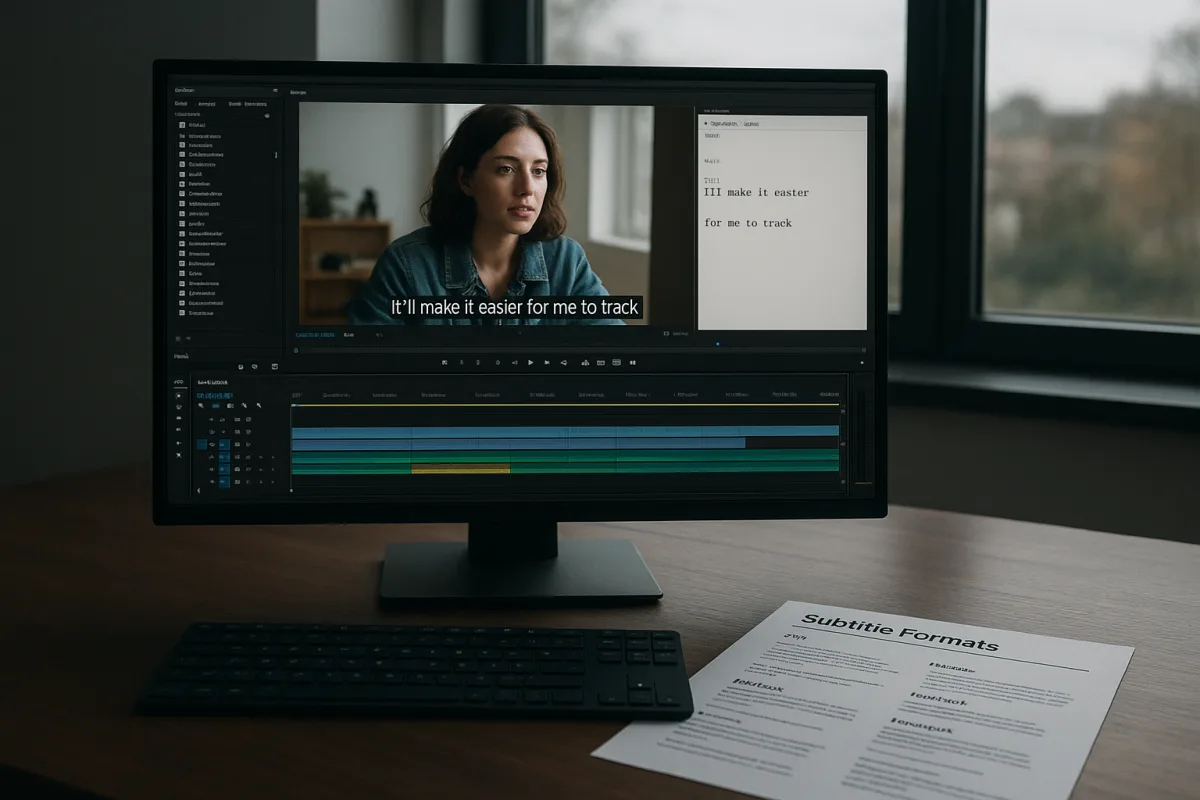
First problem: deciding what kind of subtitles you actually need
The first mistake happens before transcription starts: calling every bit of on-screen text a subtitle. For accessibility, you usually need closed captions, meaning viewers can enable or disable them and receive important audio information beyond dialogue.
That includes speaker identification where needed, meaningful sound effects, music cues that affect understanding, and audio descriptions such as phone ringing or audience applause. A transcript that only captures spoken words is not automatically an accessible caption file. [8]
Burned-in subtitles, sometimes called open captions, are permanently rendered into the image. They work where file uploads are unreliable or social feeds mute playback by default, but viewers cannot turn them off, resize them, or choose another language.
Use open captions for short social versions, review copies, or a deliberate graphic treatment. Keep a proper closed-caption file for the master delivery when accessibility, multilingual distribution, or platform controls matter.
This distinction changes the edit workflow. Burned-in text belongs in the timeline and must survive reframes, versioning and picture lock. Closed captions should be handled as a timed data track or sidecar file, so wording can change without re-encoding picture.
Choose the delivery format before opening a subtitle tool
SRT remains the safest default for broad platform compatibility. It is a plain-text timed subtitle file, easy to inspect, edit and upload, and supported widely enough that it is the sensible first delivery for many social and video-hosting platforms. [3]
For an HTML5 video player, choose WebVTT instead. WebVTT is built for web delivery and supports features that fit browser-based playback better than SRT. It is the format to ask for when the video is going on a website rather than simply being uploaded to a platform. [3]
Broadcast and enterprise systems may request TTML or DFXP. Those formats are common in more formal professional workflows, but consumer platforms do not support them as consistently as SRT or WebVTT. Confirm the receiving specification before committing an entire series. [3]
ASS and SSA are useful when styling is part of the deliverable, such as positioned dialogue, karaoke-style treatment, or heavily designed subtitles. They are not a substitute for checking the target platform, which may strip styling or reject the file altogether. [3]
Do not assume you can preserve elaborate subtitle styling by embedding it in a newer video codec. AV1 can support advanced subtitle features, but hardware adoption remains uneven. VVC, also called H.266, has compression advantages but limited hardware support still complicates embedding options. [10]
Platform support changes underneath you as well. YouTube disabled advanced SRV3 captions in January 2026 because of playback errors, temporarily narrowing styling options. Keep a plain, readable fallback such as SRT rather than making a delivery depend on one advanced caption format. [3]
Build the caption job into the timeline, not after final export
Once picture is reasonably stable, export a clean reference with continuous timecode and the final mix or a dialogue-forward guide track. If the cut is still moving, you can transcribe early, but expect retiming work after editorial changes.
This is where editors lose an hour: a caption file may look fine until a late trim shifts every entry after 04:12. Keep captions attached to the current picture version, name exports clearly, and do not reuse an old SRT just because the programme title matches.
If your NLE supports caption tracks, use them for review timing and visual checks. If it does not, create and maintain the subtitle file externally, then bring it back for a reference pass. The research brief does not establish reliable proxy-specific caption workflows for particular NLEs.
The same limitation applies to colour workflow advice. There is no evidence in the supplied research that colour management changes caption accessibility requirements. Check contrast and placement on actual outputs, but do not invent a Rec. 709 or HDR subtitle rule without a delivery specification.
Get a fast first transcript, but budget for correction
AI transcription is useful because it changes the first pass from hours of typing into minutes of machine work. It does not remove editorial responsibility. Automated output needs a human review before it can meet accessibility or compliance expectations. [11]
The practical hybrid workflow is simple: generate the transcript, correct the words while listening, split it into readable caption units, then do a full playback at normal speed. Research cited in the brief puts hybrid accuracy at roughly 98 to 99 percent when properly reviewed. [11]
Manual captioning for a ten-minute video can take five to eight hours. AI can produce a draft in minutes, while a reviewed hybrid process can improve speed by 30 to 40 percent. Those gains disappear if nobody checks the result. [11]
Pay particular attention to proper nouns, technical terms, measurements, abbreviations, overlapping speakers and jokes that transcription engines mishear. Also add relevant non-speech information. A caption reading “music” is often less useful than identifying music that changes the scene’s meaning.
Live content needs an even stricter plan. Automated live captions can be valuable, but they are not a compliance shortcut when accuracy is poor or essential non-speech information is omitted. US requirements specifically create risk around inaccurate captions and live programming. [8]
Pick software based on the handoff, not the marketing demo
The 2026 tool field includes Trint, Descript, Rev, Kapwing and VEED, with different strengths around AI transcription, editing and exports. Their suitability depends more on where the file is going than on whether the interface can generate animated text. [2][3]
Trint is positioned as an AI-powered transcription and content-editing service, so it suits teams beginning with interviews, meetings or documentary dialogue that need a searchable transcript before subtitle polishing. The supplied research does not establish a current fixed Trint price. [2]
Descript suits an edit-led workflow where text editing is closely tied to audio and video changes. Rev suits projects that may require professional subtitling services rather than only automated drafting. Professional subtitling is typically quoted at $5 to $15 per finished minute. [3]
Kapwing and VEED suit browser-based caption generation and quick social exports. Their free offerings can carry export restrictions or watermarks, so they are poor choices when a client expects a clean master without checking the current plan limits first. [5]
CaptionX Studio and JianHeBox are identified in the research as genuinely free, no-watermark options. They suit basic caption jobs on a tight budget, but the trade-off is fewer advanced features, so verify export formats and timing controls before building a repeatable workflow around them. [5]
Across the category, paid software ranges from free tiers to roughly $20 per month, while some one-time-purchase tools reach about $100. Exact plan prices change often and were not established for every named product in the research brief, so verify current pricing before budgeting. [3][5]
I have not tested these tools. The useful comparison is therefore not a claim that one produces better captions in every case. It is this: select the tool that exports the file format your destination requires and leaves room for human review.
Make the captions readable at playback speed
Character limits are destination-specific. Netflix uses a 42-character-per-line guideline, the BBC uses 37 characters, and YouTube is commonly treated as allowing about 47. Do not apply a Netflix template to a BBC delivery and call it compliant. [4]
Reading speed matters as much as line length. Common guidance places captions around 15 to 20 characters per second, depending on content and platform rules. Dense dialogue may require tighter editing of spoken wording rather than simply making the text flash faster. [4]
A subtitle normally stays on screen from about 0.833 seconds to seven seconds. That range is a guardrail, not a permission slip to leave a short single word up for seven seconds or rush a full sentence through in one second. [4]
Break captions at natural linguistic points. Keep names with titles, avoid splitting articles from nouns, and do not separate a verb from its object if you can avoid it. This is less glamorous than animated captions, but it is the difference between readable and exhausting.
Check each caption against the actual cut, not just the transcript editor. A clean sentence can become unreadable if it lands over a speaker’s face, an important lower third, a phone-screen insert, or a translated sign already carrying information.
Export, upload and verify the version viewers receive
Export the subtitle file separately first. Open it in a text editor if necessary and inspect its sequence numbers, timecodes and encoding. A simple file-level check catches broken timecode separators, duplicate entries and accidental blank captions before a platform does.
Then upload the sidecar file to the actual destination and watch the published playback. Do not judge only in the NLE. Platforms can alter line breaks, ignore styling, apply their own font treatment, or reject formats that looked valid in a desktop player.
Keep the caption source file with the project, alongside the final SRT, WebVTT or TTML export and a note naming the picture version. When the producer asks for one revised sentence after delivery, that organisation prevents a complete recaptioning job.
For US distribution, the Americans with Disabilities Act and Federal Communications Commission rules create strict captioning obligations, with legal consequences for failures. The common mistakes are inaccurate captions, mishandled live content and missing multilingual accessibility planning. [8]
For EU-facing services, the European Accessibility Act took effect on June 28, 2025. The research brief cites possible fines of €5,000 to €20,000 per violation, making caption review cheaper than discovering a compliance issue after publication. [9]
Regional rules beyond the US and EU are not established in the supplied research, so do not assume these frameworks cover every market. For a regulated delivery, obtain the platform specification and legal guidance for the country before locking captions.
Frequently Asked Questions
What are the different types of subtitles and captions?
Closed captions include dialogue plus important audio information such as speaker identification, sound effects, and music cues, allowing viewers to toggle them on or off. Burned-in subtitles, or open captions, are permanently embedded in the video image and cannot be turned off, resized, or changed by the viewer. Closed captions are essential for accessibility, while burned-in subtitles are often used for social media or review copies.
How do I choose the right subtitle format for my platform?
Select the subtitle format based on the platform’s requirements: SRT is the safest default for broad compatibility, WebVTT is preferred for HTML5 web players, and TTML or DFXP are common in broadcast or enterprise workflows. ASS/SSA formats are used when styling is important but may not be supported everywhere. Always confirm the receiving platform’s specifications before finalizing the subtitle format.
What is the difference between burned-in and closed captions?
Burned-in captions are permanently part of the video image and cannot be turned off or customized by viewers. Closed captions are separate timed data files that viewers can enable or disable, allowing for accessibility features such as multiple languages and adjustable display. Closed captions should be treated as an accessibility deliverable, while burned-in captions are typically used for short social clips or specific creative needs.
How can AI transcription speed up subtitle creation?
AI transcription reduces the initial subtitle creation time from hours of manual typing to minutes by generating a first draft automatically. However, human review is still necessary to correct errors, especially for names, numbers, speaker changes, and non-speech audio, ensuring accuracy and compliance with accessibility standards.
How do I ensure subtitles meet accessibility standards?
Treat captions as an accessibility deliverable, not a last-minute addition. Include all relevant audio information beyond dialogue, such as speaker IDs and sound effects. Follow platform-specific reading speed and line length guidelines, and ensure captions are accurate and synchronized. Compliance with US and EU laws is mandatory, with legal penalties for missing or inaccurate captions.
How we researched this
This article was assembled from 13 cited references.
Nothing here is based on hands-on testing. Where a figure or finding appears, it belongs to the source cited beside it, and the writing says so rather than implying otherwise. Every source is listed below so you can check it.
Sources
- Hacked in Translation -- from Subtitles to Complete Takeover
- Trint - AI-Powered Video & Audio Transcriber video and Content editor – ToolPilot
- Video Subtitle Software | Ranked for 2026
- Subtitle Reading Speed — CPS & WPM Standards
- App That Add Subtitles to Video: 7 Best Tools in 2026 (Free & Paid) | ClipMake
- Movavi Video Editor 2026: An affordable and feature-packed non-linear video editor
- Pinnacle Studio 26 Ultimate takes on Premiere Pro with a one-time fee
- Accessibility Laws Every Video Publisher Should Know (2026)
- EU Accessibility Act: Video Content Requirements | Acolad
- AV1 Open Video Codec Now Powers 30% of Netflix Streaming
- English Subtitle Generator: How to Create Accurate Subtitles in 2026
- Edit Your Videos in Minutes With These Automatic Video Editors
- Accessibility regulations - GoTranscript Help Center | Get Answers & Support
Related Articles
Edit Video for Social Media: Tips on Formats, Length & Color
Learn how to edit video for social media with tips on formats, length, proxies, and color grading for optimal engagement and platform compatibility.
Video Editing for Non-Profits: Tips, Tools, and Workflow
Learn video editing for non-profits with tips on timelines, proxies, codecs, and free tools to create effective fundraising and social videos.
Video Editing Techniques for Corporate Videos
Learn effective video editing techniques for corporate videos, including timelines, proxies, codecs, and color grading best practices.

Travel Vlog Video Editing: Workflow, Proxies & Colour Tips
Learn travel vlog video editing with tips on workflow, proxies, colour grading, and pacing to create engaging travel videos efficiently.