
Beginner Video Editing Apps Comparison: CapCut vs iMovie
Compare beginner video editing apps CapCut and iMovie to find the best fit for social videos or Mac users starting out with editing.
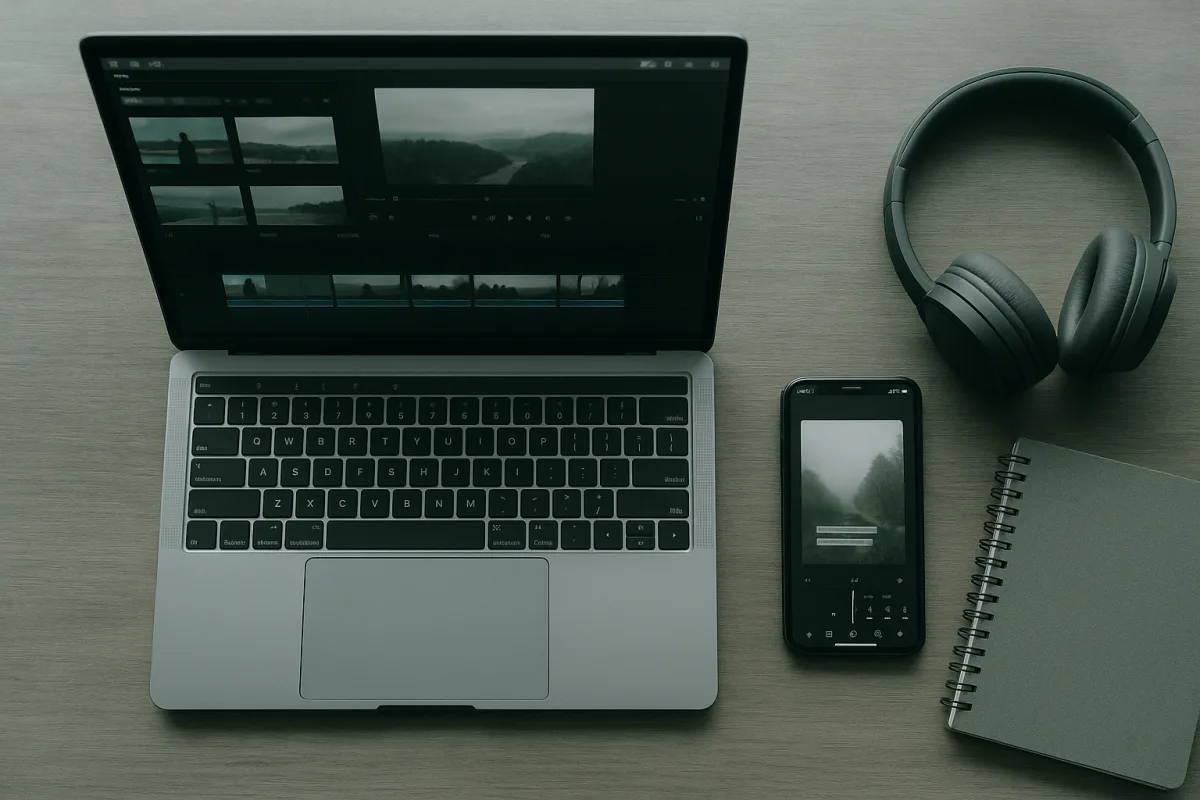
The decision: CapCut or iMovie?
For an accessible first editor, the useful decision is CapCut versus iMovie. Both reduce the friction of getting clips onto a timeline, trimming them, adding text and exporting something watchable. They solve different beginner problems.
CapCut is built around fast short-form publishing, templates and assisted editing, which makes it the stronger fit for vertical social work. iMovie is the simpler choice for an Apple user who wants to learn ordinary editing grammar first: select, trim, arrange, balance audio and export. [19][6]
That does not make CapCut the automatic winner. Its US availability has been uncertain since the temporary ban on new downloads in January 2025, even where existing users retained access. A beginner should not build a client or school workflow around an app they may not be able to install again.
iMovie has the opposite limitation. It is an Apple-only answer. For a Windows user, “just use iMovie” is not advice, it is a platform change. For a Mac owner, though, avoiding an extra account, subscription decision and template marketplace is a real advantage.
CapCut versus iMovie, criterion by criterion
| Criterion | CapCut | iMovie |
|---|---|---|
| Best fit | Quick vertical social videos, especially TikTok and Instagram Reels. [19] | Mac users who want the cleanest path into basic editing. [[6]](https://toolradar.com/guides/best-video-editing-software?utm_source=openai "Best Video Editing Software 2026 |
| Cost position | Entry-level, with a no-cost route and an optional paid tier. Paid-plan pricing varies by region. | Entry-level, included within Apple’s ecosystem rather than sold as a separate premium editor. |
| Where it runs | Cross-platform availability is a major attraction, but regional availability can affect access. | Apple devices only, which is either wonderfully straightforward or an immediate deal-breaker. |
| First-hour learning curve | Friendly if you want templates, captions and quick assembly, but the quantity of automated options can distract from basic editing decisions. | Usually easier for learning the timeline basics because the interface presents fewer choices. |
| Short-form publishing | The better choice for creator-style vertical edits and quick social publishing. [19] | Capable of making short clips, but not designed around the same social-first workflow. |
| Templates and AI assistance | Stronger emphasis on templates and AI-assisted editing. CapCut reportedly offers more than 6,000 templates and AI auto-edit tools. | The research brief does not establish comparable template volume or AI-assisted features. |
| Timeline headroom | Suitable for straightforward edits, but beginners should not mistake quick social tools for proof that it is ideal for every long-form project. | Best for simple projects. It can teach sequencing well, but is not the choice for an editor who needs a deep, expandable timeline environment. |
| Codecs and proxies | The brief identifies CapCut as one of the beginner-oriented apps with broad modern codec support and proxy workflows. [8] | No specific proxy-workflow evidence was found in the supplied research, so do not assume it will solve a difficult 4K or HEVC project the way a documented proxy workflow can. |
| Availability risk | The major caution. US access has been unstable, so verify that it is available in your region before committing. | Stable for people already using supported Apple hardware, but unavailable to Windows users. |
| Where it falls down | It can encourage template-first editing, and availability is a practical workflow risk in some markets. | Its simplicity becomes a ceiling when projects need more control, especially beyond basic edits. |
The honest result is close because the apps are not chasing exactly the same job. CapCut wins for the beginner making frequent social clips. iMovie wins for the beginner who owns a Mac and wants to understand editing before adding automated captions, trend templates and effects.
A useful first-project test is simple. If the deliverable is three vertical clips a week with captions, start with CapCut, assuming it is available where you live. If it is a family film, school project or basic YouTube edit assembled on a Mac, start with iMovie.
Where the rest of the field sits
The wider beginner field matters because the wrong step up wastes more time than a slightly slower export. These are not all alternatives to CapCut and iMovie. Some are better described as next-stage editors, while others trade polished onboarding for flexibility.
| App | Cost position | What it suits | Where it sits in the decision |
|---|---|---|---|
| CapCut | Entry-level, with a no-cost entry point and optional paid tier | Quick vertical social videos | Best social-first pick, subject to regional availability. [19] |
| iMovie | Entry-level | Mac users seeking simplicity | Best basic starting point for an Apple-only workflow. [[6]](https://toolradar.com/guides/best-video-editing-software?utm_source=openai "Best Video Editing Software 2026 |
| Clipchamp | Entry-level, with a no-cost route through Microsoft’s ecosystem | Windows users and browser-based editing | A practical alternative when you want quick edits without installing a conventional desktop editor. [[3]](https://clipverdict.com/best-video-editing-software-beginners/?utm_source=openai "Best Video Editing Software for Beginners 2026 |
| Filmora | Mid-range paid option | General-purpose drag-and-drop editing | The clearer paid all-round starting point for templates, captions, effects and guided export. [19] |
| DaVinci Resolve | Mid-range position with a notably capable free version | Serious beginners interested in professional-grade tools | A better long-term learning investment than a true first-hour editor, provided your computer and patience are up to it. [19] |
| Adobe Premiere Elements 2026 | Mid-range, one-time-purchase position | Users wanting simplified and advanced tools | A bridge between guided learning and a fuller editor, though its feature depth can become complicated quickly. [4] |
| Pinnacle Studio 26 Ultimate | Premium, one-time-purchase position | Editors seeking advanced tools without a subscription | A Windows-only option for someone who wants more advanced editing without recurring payments, not the cleanest cross-platform beginner choice. [5] |
| Movavi Video Editor | Mid-range paid option | Beginners and low-budget creators wanting an intuitive interface | A straightforward option for essential editing without starting in a professional-scale application. [[6]](https://toolradar.com/guides/best-video-editing-software?utm_source=openai "Best Video Editing Software 2026 |
| Shotcut | Entry-level, no-cost open-source option | Users wanting a flexible timeline | Suitable for beginners willing to trade guided polish for a more configurable workspace. [[6]](https://toolradar.com/guides/best-video-editing-software?utm_source=openai "Best Video Editing Software 2026 |
| Kdenlive | Entry-level, no-cost open-source option | Users wanting a flexible timeline | Another flexible open-source route for a learner prepared to explore rather than follow a heavily guided interface. [20] |
| Adobe Premiere Pro | Premium subscription position | Professionals needing industry-standard tools and Creative Cloud integration | Not the first recommendation for accessibility, unless the learner needs it for a specific workplace or training programme. [[6]](https://toolradar.com/guides/best-video-editing-software?utm_source=openai "Best Video Editing Software 2026 |
| Final Cut Pro | Premium position | Mac users seeking performance and professional capability | The professional Mac route, better saved for editors who have outgrown iMovie’s limits. [[6]](https://toolradar.com/guides/best-video-editing-software?utm_source=openai "Best Video Editing Software 2026 |
The cost labels here are relative positions, not current sticker prices. Subscription terms, promotions and regional pricing move often, particularly for apps with paid add-ons or country-specific plans. Verify the current price, export limits and licensing terms before paying.
Filmora is the sensible paid alternative for someone who finds CapCut too social-first and iMovie too limited. Its drag-and-drop approach, templates, captions and guided export are specifically aimed at beginners who want a general-purpose editor rather than a professional suite. [19]
DaVinci Resolve is the tempting free answer for ambitious beginners because it combines editing, colour, audio, effects and motion graphics in one application. That breadth is real, but it is also the reason it can be a poor first choice for someone who only needs to cut three clips together. [19]
Adobe Premiere Elements 2026 offers Quick, Guided and Advanced modes, which sounds like a sensible progression path. Digital Camera World’s review also flags that it can get complicated fast, so it suits a learner who wants room to grow, not necessarily an absolute novice. [4]
Pinnacle Studio 26 Ultimate suits a Windows editor who values a one-time-payment model and wants advanced tools without stepping into Adobe Premiere Pro’s subscription ecosystem. Its lack of macOS support and plugin support are meaningful limits, and the supplied research does not establish detailed hardware requirements. [5]
Clipchamp is worth considering for a Windows or browser-based workflow, particularly where downloading a full desktop editor is inconvenient. It includes AI-oriented features such as text-to-speech and silence removal, but the research does not clearly document detailed hardware expectations or advanced workflow depth. [3]
Movavi Video Editor is the simpler paid lane for a budget-conscious beginner who wants an intuitive interface and essential editing tools. Shotcut and Kdenlive are the no-cost open-source alternatives for learners who want flexible timelines, but their flexibility should not be confused with hand-holding. [6][20]
Adobe Premiere Pro and Final Cut Pro are not bad beginner apps, they are just expensive in time and scope if the immediate task is basic social or family-video editing. Premiere Pro fits professional ecosystem requirements, while Final Cut Pro is the performance-oriented professional choice for Mac users. [6]
Do not solve a workflow problem with a new app
Most beginner pain is not caused by the laptop being too weak. It is caused by a messy project: clips copied from several phones, no naming convention, music dropped in before the story is cut, and no saved version before experimenting with effects.
Start by making folders for footage, audio, graphics and exports. Name project versions by date or revision. Cut the story before adding transitions. Check dialogue through headphones, then correct obvious exposure and white-balance problems before reaching for a dramatic look.
For 4K work, system requirements matter. The broad baseline is at least 8GB of RAM, with 16GB or more the safer recommendation, plus a reasonably modern CPU and a dedicated GPU where your resolution and software benefit from one. [7][8]
A proxy workflow can save an hour of stuttering playback. The editor creates lighter copies for the timeline, while retaining the original camera files for final export. The supplied research identifies documented proxy support in CapCut, DaVinci Resolve, Shotcut and Kdenlive, but not in iMovie, Clipchamp or Premiere Elements. [8]
Do not assume every app handles HEVC, 10-bit footage, HDR or 4K media equally just because it opens one file. Test a short representative clip before committing to a whole project. That is less glamorous than comparing effects packs, but it is how deadlines survive.
Beginner guidance consistently warns against overusing effects, neglecting audio and colour correction, failing to plan, using poor-quality footage and not saving versions. [12][15] The fix is usually boring: fewer transitions, cleaner sound, a simple shot order and a duplicate project before major changes.
Who each option suits
CapCut suits the beginner whose output is frequent, vertical and social-first. It is the stronger choice for captions, templates and quick turnaround, especially when the edit is designed for TikTok or Instagram Reels. Confirm local availability first, particularly in the United States.
iMovie suits the Mac owner who wants to learn the foundations without negotiating a crowded interface. It is the better choice for simple personal films, school work and straightforward YouTube edits where clear storytelling matters more than automated social features.
Move to Filmora when you want an approachable paid all-round editor. Move to DaVinci Resolve when you are ready to learn a more demanding application for colour, audio and serious editing. Choose Premiere Elements when guided modes appeal but you accept added complexity.
Choose Clipchamp for convenient Windows or browser-based work, Movavi for a simple paid interface, and Shotcut or Kdenlive when no-cost open-source flexibility matters more than guided onboarding. Save Pinnacle Studio, Premiere Pro and Final Cut Pro for needs their advanced toolsets actually justify.
Frequently Asked Questions
Which beginner video editing app is better for social media videos?
CapCut is generally better suited for beginners focused on fast vertical social videos for platforms like TikTok and Instagram Reels. It offers numerous templates and AI-assisted editing tools designed for quick social publishing, making it a strong choice if it is available in your region.
What are the differences between CapCut and iMovie for new editors?
CapCut emphasizes fast, template-driven vertical video creation with AI assistance and cross-platform availability, though its US availability is currently unstable. iMovie is simpler and more straightforward for Mac users learning basic editing grammar such as trimming, arranging clips, and balancing audio, but it lacks the extensive template and AI features of CapCut.
Is iMovie a good choice for beginner video editors on Mac?
Yes, iMovie is a good choice for Mac users who want an easy, less intimidating introduction to video editing. It avoids subscription complexities and template marketplaces, providing a clean path to learn basic editing skills like cutting, titling, and exporting.
Can beginners use CapCut for TikTok and Instagram videos?
Yes, CapCut is designed for quick creation of vertical social videos with many templates and AI tools, making it suitable for TikTok and Instagram content. However, beginners should verify that CapCut is available in their region before relying on it for a consistent workflow.
What should beginners consider when choosing a video editing app?
Beginners should consider their primary editing goals (e.g., social vertical videos versus basic family or school projects), the platform they use (Mac only for iMovie, cross-platform but regionally restricted for CapCut), and the complexity of projects they want to handle. They should also be aware of hardware requirements, such as having 16GB RAM for smoother 4K editing and the availability of proxy workflows.
How we researched this
This article was assembled from 22 cited references.
Nothing here is based on hands-on testing. Where a figure or finding appears, it belongs to the source cited beside it, and the writing says so rather than implying otherwise. Every source is listed below so you can check it.
Sources
- Teknik Edit Video Mudah Smartphone - CapCut
- Best AI Video Editors for Beginners (2026) | Eliro
- Best Video Editing Software for Beginners 2026 | ClipVerdict
- Adobe Premiere Elements 2026 review: The latest edition of Adobe's beginner-friendly video editor is feature-rich, but can get complicated fast
- Pinnacle Studio 26 Ultimate takes on Premiere Pro with a one-time fee
- Best Video Editing Software 2026 | Toolradar
- AI Video Editing for Low-End PCs (2026 Guide) -
- 4 Best Lightweight Video Editors for Windows and Mac (Tested & Compared)
- Best Free Video Editor for 4GB RAM PC (Smooth & Lightweight)
- Top 10 Free Video Editing Software for Low-End PCs - purshoLOGY
- Best AI Video Editors 2026: 5 Tools, Pricing & Workflows
- 5 Most Common Editing Mistakes Beginners Make (and How to Avoid Them) - motionbank21
- How to Edit a Video: Complete Beginner's Guide (2026)
- Common Video Editing Mistakes Beginners Should Avoid | Bidmonline
- New to Video Editing? Here Are the Three Most Common Mistakes All Beginner Editors Make and How to Fix Them | Fstoppers
- Video Editing Tips: 10 Beginner Mistakes | Primal Video
- 10 Common Mistakes Beginners Make in Video Editing 2026 - Arraya Studios
- How to Edit Videos for Beginners : From Novice to Pro – ITU Online IT Training
- Best video editing software for beginners 2026: 7 easy apps compared
- Video Editing Software for Beginners (2026): Free & Easy · Enlisted
- Wie entfernt man den Ton aus einem iPhone-Video?
- Les 10 meilleurs sites de montage vidéo en ligne et gratuits
Related Articles
Best Video Editing Apps for Mobile
Compare the best video editing apps for mobile in 2026, focusing on CapCut and LumaFusion features, workflows, and performance tips.
Top Video Editing Software for Beginners: CapCut vs iMovie
Discover the best video editing software for beginners with a comparison of CapCut and iMovie to find the right fit for your editing needs.
Video Editing Proxies for Beginners: Tips and Best Practices
Learn video editing proxies for beginners with tips on codecs, resolutions, and workflows to optimize editing performance and quality.
Best Video Editing Software for Mac
Compare Final Cut Pro 10.6 and DaVinci Resolve 18 to find the best video editing software for Mac users focused on Apple Silicon and 4K workflows.