How to Sync Audio and Video: Essential Post-Production Tips
Learn how to sync audio and video accurately with tips on frame rates, timecode, and troubleshooting common sync issues in post-production.
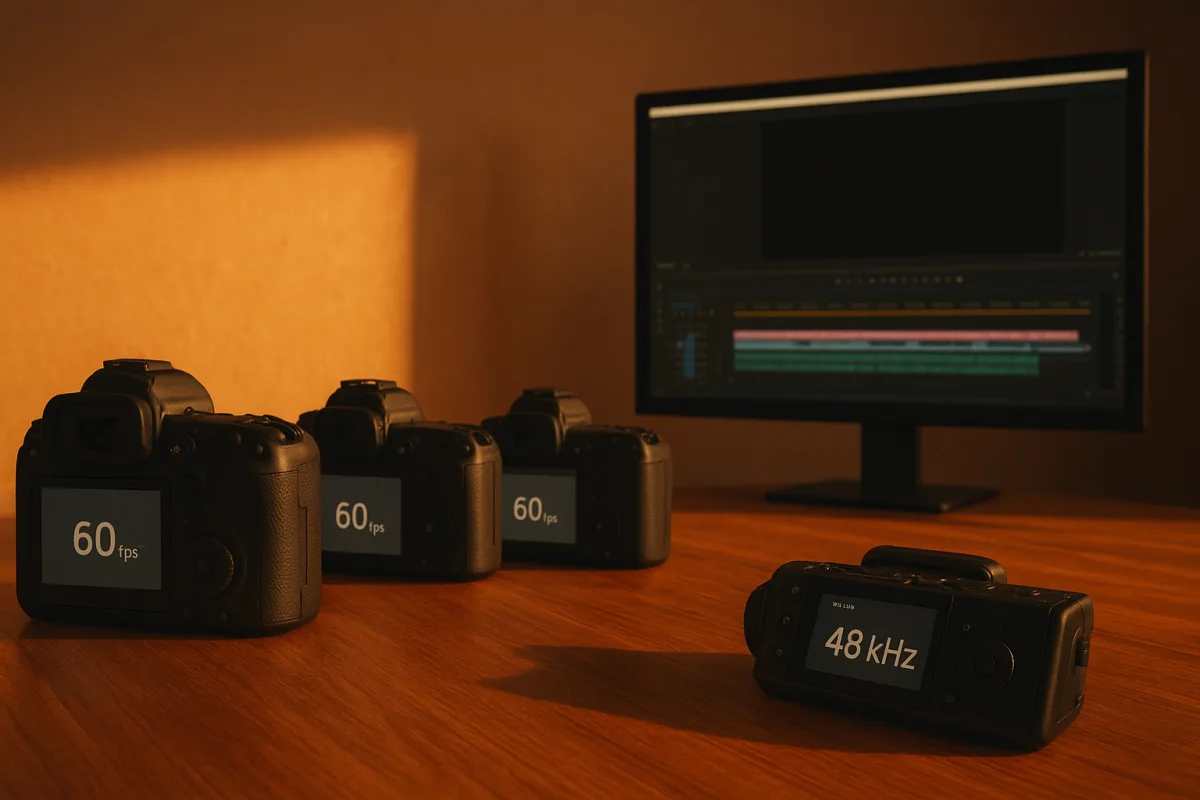
Start before the first take: lock the numbers that cause drift
Most sync failures are not fixed in the timeline. They are created when camera, recorder and project settings disagree before anyone presses record.
Set every camera to the same intended frame rate, and create the edit timeline at that rate. The practical standards still matter: 24 fps for film-style workflows, 25 fps in PAL territories, 29.97 fps, drop-frame or non-drop-frame as required, in NTSC-derived broadcast workflows, and 30 fps mainly in legacy NTSC systems. Do not treat 29.97 and 30 as interchangeable because they look close in a camera menu. A long interview recorded at one and edited as the other will gradually fall apart. [5] [6]
Set dedicated audio recorders to 48 kHz. It is the normal production rate for video, and converting 44.1 kHz music-oriented recordings can introduce artifacts and contribute to drift if the workflow is not handled correctly. [13] If the sound recordist hands over 44.1 kHz files, convert them once, deliberately, before building the edit. Do not let different applications resample files at different stages and then try to diagnose a moving sync problem in the sequence.
Before the shoot, write down four items on the camera report or production note:
- Frame rate, including whether 29.97 is drop-frame or non-drop-frame.
- Audio sample rate, normally 48 kHz.
- Timecode frame rate and time-of-day or record-run approach.
- Which device is the master clock, if there is one.
That sounds bureaucratic until you receive three cameras, a field recorder and a phone clip. Then it is the difference between a 10-minute ingest and an afternoon of sliding clips.
Variable frame rate footage deserves its own warning. Phones, webcams and screen-recording applications commonly create variable frame rate, or VFR, media. Waveform sync may line up at the slate and then drift because the file does not play as a consistent frame cadence in the NLE. Convert VFR clips to constant frame rate before syncing, and keep the converted files clearly labelled so nobody relinks the project to the original VFR media later. VFR, mismatched frame rates and conflicting audio sample rates are documented causes of waveform-sync failures and offsets. [12] [13] [14]
Give the edit something obvious to sync
At the top of every take, make a sharp visual and audible marker. A slate and clap is still the most useful low-tech insurance policy in post. It gives you a visible frame for picture, a spike in the camera scratch track, and a spike in the recorder track. If automatic sync fails, you have a clean manual fallback.
The marker needs to be in frame and loud enough for every recording device to catch. A clap off camera may be audible but leaves you guessing at the exact video frame. A slate held in front of only A camera is less useful when B camera has the clean close-up you need.
For short single-camera work, this can be enough. Put the external WAV under the camera clip, align the clap transient with the closing frame of the clapper, then check a hard consonant in dialogue several minutes later. Do not judge sync from a soft vowel or a wide shot. Plosive sounds, finger snaps, door latches and visible impacts reveal errors much more clearly.
Waveform matching is a legitimate first pass, not magic. It compares the camera’s guide audio with the external recorder’s waveform and can handle a large batch of clips when the scratch track is usable. [3] It becomes less reliable with poor guide audio, loud music, repeated takes with similar dialogue, long silences, or clips that start well after the recorder. Treat auto-sync as a draft that needs verification.
Premiere Pro, DaVinci Resolve and Final Cut Pro are commonly used for practical syncing workflows, including audio-based and timecode-based organisation. [2] The exact menu names, supported metadata and multicam behaviour vary by version, so do not follow a tutorial for one NLE literally in another. The underlying decision is the same: decide whether the software should use timecode, audio waveforms, a marker, or a manually selected in-point, then inspect the result before you commit it to a multicam sequence.
I have not tested every version or sync implementation in those applications. For deadline work, the safe rule is simpler: sync a representative long clip first. If it holds at the beginning, middle and end, batch the rest. If it does not, stop and identify the mismatch before creating a hundred bad merged clips.
When automatic sync gets the first frame right but the end wrong
This is the classic drift problem. The first clap is aligned, the first answer sounds fine, and by the end of a 45-minute interview the lips are visibly late. Do not start cutting the audio into pieces and nudging each section. Find the clock or rate problem.
Check these in order:
- Confirm the camera clips are constant frame rate.
- Confirm all source material was recorded for the same frame-rate standard.
- Confirm the external audio is 48 kHz, or that any conversion was done correctly.
- Confirm the timeline was not created at a near-match rate, such as 30 fps for 29.97 fps media.
- Check whether an import offset has been applied by the NLE or media-management process.
- Compare the source clip duration against the recorder file duration.
Mismatched frame rates, sample rates, unsynchronised recording devices and import offsets are all identified causes of sync drift or offsets. [12] [13] [15] [16]
If the error is constant from beginning to end, it is probably an offset. Move the audio or video by the required number of frames or milliseconds, then recheck multiple points. If the error grows over time, it is drift. Re-transcode VFR material to constant frame rate where appropriate, verify sample rates, and confirm the actual capture rates before attempting any editorial repair.
A speed change can force a file to fit, but it is a last resort, not a normal sync technique. It can affect dialogue pitch unless pitch correction is applied, and it can conceal the real issue from the next editor or mix engineer. If you must make a rate-conform decision, document it in the project notes and export a reference with visible timecode for sound post.
Use timecode, but do not confuse it with sync
For multicamera interviews, documentary coverage, concerts and any long-form shoot, jam-synced timecode saves serious time. Affordable timecode generators are available below USD 200, making the approach realistic beyond large crews. [2] LTC and VITC remain common timecode forms in video workflows. [5] [6]
But timecode is not the same thing as frame-accurate sync. Ambient’s technical guidance makes the important distinction: some cameras and audio recorders embed timecode as metadata timestamps, and metadata alone may not guarantee exact alignment between devices, particularly over long recordings or in multicamera work. [19]
That is why the robust workflow uses both systems:
- Jam timecode across cameras and recorders.
- Record a usable scratch track on every camera.
- Slate or clap every take, particularly after batteries, card swaps or a long break.
- Sync by timecode in the NLE for speed.
- Verify the slate and several visible speech moments by waveform and picture.
Timecode gets the bins organised. The clap and waveform prove that the files actually line up.
For a multicam edit, build the sync sequence from verified source clips, not from a mixture of camera audio and external WAVs you have not checked. Keep the recorder track as the likely primary dialogue source, but retain camera scratch tracks until picture lock. They are useful for checking a bad edit, a relink problem or a section where the recorder stopped.
Do not blame lighting for a timing problem
LED flicker, shutter choices and rolling-shutter artifacts can make a shot feel wrong, especially around visible impacts or speech, but they do not directly create an audio-video sync offset. LED flicker is an exposure and sampling issue that can show bands or pulsing in the image. [10] The research brief found no direct evidence that lighting or shutter speed changes sync precision beyond those indirect visual artifacts. [1] [10]
Fix flicker as an image problem. Fix offset and drift as a clock, frame-rate, sample-rate or file-interpretation problem. Combining them into one vague “camera issue” wastes time.
Check sync before colour, mix and export
Once the cut is assembled, check sync at edit points, not only inside uninterrupted takes. Dialogue can be correct within each source clip but wrong after a split edit, speed change, proxy relink or audio replacement.
Use close-ups where possible and listen for consonants that have a clear mouth shape: P, B, T, K and D. Check applause, object impacts and cuts to reaction shots. Then review at normal speed, because a one-frame error can be obvious in a talking-head close-up even when it is hard to spot while scrubbing.
For professional delivery, the tolerance is not unlimited. EBU R37 permits audio from 60 ms early to 40 ms late, while ATSC IS-191 permits 45 ms early to 15 ms late. [18] Those are boundaries, not targets. For speech-led work, aim tighter than the maximum permitted range, especially when viewers will see close-ups on phones, tablets and large displays.
Sync is also only one part of technical delivery. Regional deliverables may bring different loudness, colour and metadata requirements: EBU R128 uses -23 LUFS in Europe, ATSC A/85 uses -24 LUFS in the United States, and podcast workflows often target -16 LUFS. Common picture delivery standards include Rec.709 for SDR and HLG in Rec.2020 for HDR. [17] A perfectly synced edit can still fail delivery if its timeline, audio mix and colour export are built for the wrong specification.
Leave AI sync as a specialist option, not the rescue plan
Motion-based and transformer-based sync tools are emerging alongside waveform and timecode workflows. Research described by RhythmM points to low-latency alignment possibilities, but also to substantial computational requirements and workflow complexity. It is not yet standard practice for ordinary post-production teams. [4]
That makes AI sync worth watching for difficult material, such as recordings with weak guide audio or remote contributors, but not a replacement for a slate, matched settings and a proper ingest check. Cloud-based processing may add another handoff, another upload and another point of failure when the schedule is tight. [4]
The reliable fix is still unglamorous: match frame rates, record 48 kHz audio, use timecode where the shoot justifies it, clap every take, and verify the sync before you start making creative decisions. It is faster than repairing an edit after the client notices every close-up is late.
Frequently Asked Questions
How do I sync audio and video in post-production?
Begin by ensuring all devices are set to the same frame rate and audio sample rate before recording. Use a clear visual and audible marker like a slate and clap at the start of each take to provide a reference point. Sync can then be done by aligning the clap transient in the audio waveform with the visual clap frame in the video timeline. Automatic waveform sync tools in NLEs like Premiere Pro, DaVinci Resolve, or Final Cut Pro can assist but always verify the results manually.
What causes audio and video to go out of sync?
Sync issues often arise from mismatched frame rates between cameras and the edit timeline, variable frame rate footage, differing audio sample rates, or unsynchronized recording devices. Using 29.97 fps footage in a 30 fps timeline, or mixing 44.1 kHz audio with 48 kHz video audio without proper conversion, are common causes. Import offsets applied by editing software can also introduce drift.
How can I fix audio drift in video editing?
First, confirm that all clips are constant frame rate and that audio sample rates are consistent, ideally 48 kHz. Check that the timeline’s frame rate matches the source footage exactly. Avoid cutting and nudging audio segments; instead, identify and correct the underlying clock or rate mismatch. If needed, convert variable frame rate footage to constant frame rate before syncing.
What frame rates and sample rates should I use for syncing?
Use standard frame rates appropriate to your region and workflow: 24 fps for film-style projects, 25 fps for PAL territories, 29.97 fps (drop-frame or non-drop-frame) for NTSC broadcast, and 30 fps mainly for legacy NTSC systems. Audio should be recorded at 48 kHz, which is the normal production rate for video. If you receive 44.1 kHz audio files, convert them deliberately to 48 kHz before editing to avoid sync issues.
How do I use timecode to sync audio and video?
Record and note the timecode frame rate and method (time-of-day or record-run) on the camera report before shooting. Decide which device is the master clock to maintain synchronization. While timecode metadata can assist syncing in NLEs, it may not guarantee exact sync, especially with multiple cameras or long recordings, so always verify sync accuracy visually and aurally after using timecode.
Sources
- Analysis of Rolling Shutter Effect on ENF based Video Forensics
- Multicam Editing Workflow Guide 2026: Tools, Techniques, and Best Practices for Multi-Camera Productions — VidioPics
- Understanding Audio Waveform Synchronization — WaveXML Blog
- 2026 Sync Engines: Onset, Motion, Transformer (12ms, 45ms, 8ms) | getrhythmm.com
- Timecode - LED Video Wall Glossary | Show Tech
- Video Timecode
- SMPTE Timecode: Locking Tracks, Lights and Video
- AV Sync Test: From Quick Checks to Forensic Analysis | AI Video Detector
- Audio Latency for Streaming: OBS, Twitch & YouTube
- Why Do LED Lights Flicker in Video? Stop Bands and Pulsing | Aperture Authority
- How to Fix Webcam and Mic Audio Sync Issues (August 2026 Guide)
- Teleprompter Audio Sync: Common Mistakes
- How to Sync Audio with Video | Easy Tips for Perfect Sync | SFX Engine
- A Guide to Flawless Syncing Audio to Video | Colossyan
- Audio Synchronizer Workflow for Smooth Editing
- What to Do When Your Audio and Picture Are Out of Sync in the Edit | Tools for Film
- Audio post-production workflow: an overview
- Audio-to-video synchronization
- Timecode is not Sync: Why Timecode is not always enough – Ambient FAQ
Related Articles
How to Use Green Screen in Video Editing: Setup and Tips
Learn how to use green screen in video editing with tips on setup, lighting, materials, and software for clean chroma key results.
Fix Audio Issues in Video: Tips for Better Sound Quality
Learn how to fix audio issues in video with tips on sync, noise reduction, and audio repair for clearer, professional sound in your edits.
Common Mistakes in Video Editing
Learn common mistakes in video editing including timeline setup, frame rate mismatches, and timecode errors to improve your post-production workflow.

How to Stabilize Shaky Footage: Tips for Smooth Video
Learn how to stabilize shaky footage effectively, avoid artifacts, and choose the best settings in post-production for smooth, professional video.