CapCut vs Adobe Premiere Mobile
Compare CapCut and Adobe Premiere Mobile for Android video editing. Learn which app suits social edits or professional multi-track projects best.
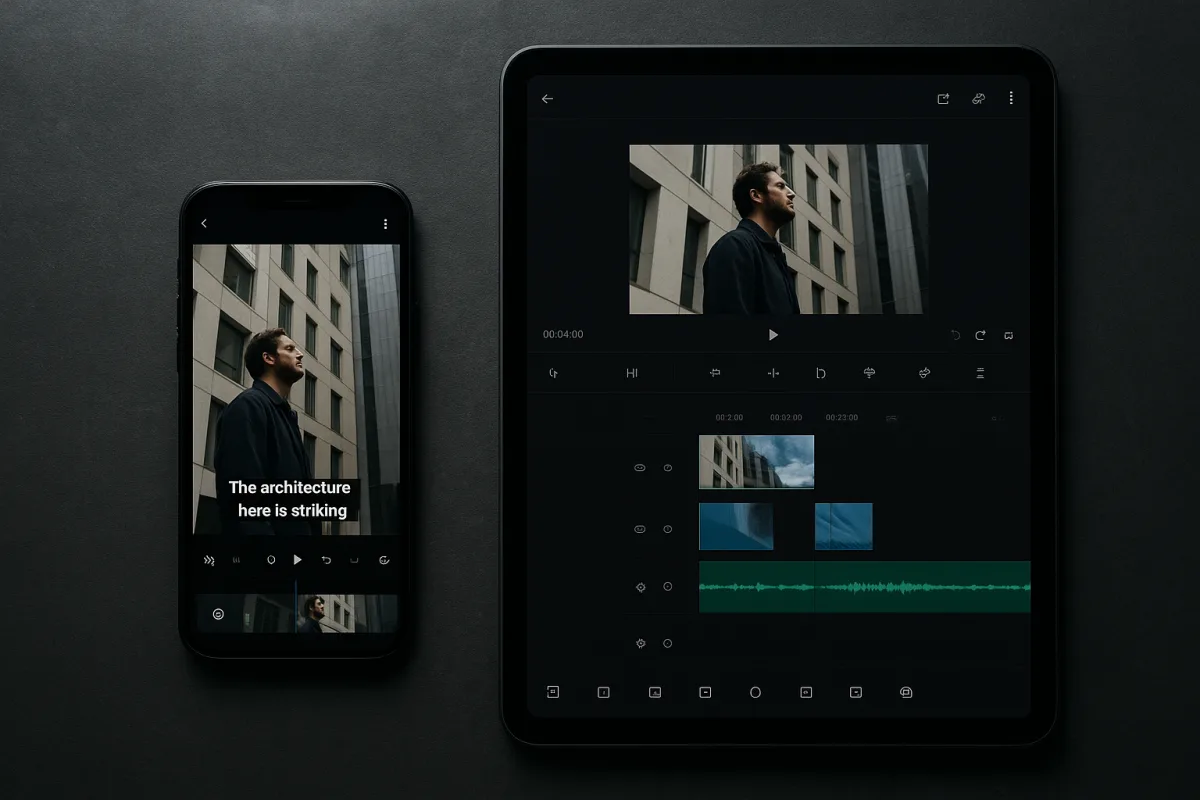
CapCut’s captions are already on the clip. Premiere’s empty timeline is waiting.
A phone full of vertical clips, one long interview, and a delivery deadline creates two very different editing jobs. CapCut starts with templates, automatic captions, and quick social tools. Adobe Premiere Mobile starts closer to a conventional multi-track edit.[14]
Our pick for most Android editors is CapCut. It is the better first install when the deliverable is a short-form social cut and speed matters more than building a detailed editorial timeline.
Adobe Premiere Mobile is the choice if you want a premium Android editor with multi-track editing, 4K export, no ads, and no watermark, and your phone meets its stricter requirements.[14] It is closer to the working shape of a professional edit, though not a replacement for a desktop NLE.
These are close options for short projects. CapCut wins on immediate output and accessible tools. Premiere Mobile wins when you need to organize multiple layers and want fewer consumer-facing distractions around the edit.
The Android field around these two apps
CapCut and Adobe Premiere Mobile sit near the top of the Android field, alongside premium mobile editor LumaFusion, effects-focused PowerDirector, and timeline-oriented KineMaster.[14] Each serves a different point in the workflow.
LumaFusion is the premium option for professionals who need sophisticated multi-track editing, advanced effects, and extensive export options. It is a one-time-purchase app, unlike subscription-based freemium tools, and it is one of the stronger choices when mobile color work matters.[14]
PowerDirector sits in the middle of the market for editors who want AI-powered effects and 4K editing. It also offers desktop-class effects, although its free version includes watermarks.[22]
KineMaster is a mid-range pick for precise timeline control, multi-layer editing, chroma keying, and audio mixing. Its free version includes a watermark, so it is less attractive if you need clean client exports without upgrading.[14]
At the entry level, VN Video Editor offers watermark-free exports along with keyframes and LUT support, making it the strongest free alternative for beginners who still need some control over motion and color.[21] InShot is aimed at quick social trimming, while YouCut targets lightweight, fast edits.[22]
FilmoraGo is a mid-range template and effects app for creative projects that need a large preset library, though its free version includes watermarks.[22] InShot’s watermark can be removed through a purchase, while APK Review gives conflicting descriptions of YouCut’s watermark behavior, so confirm the current export screen before building a delivery workflow around it.[22]
Three apps on this broader list are not Android options. iMovie is Apple’s entry-level editor for iPhone, iPad, and Mac, while DaVinci Resolve for iPad targets professional editing and color work, and Final Cut Pro for iPad adds multicamera and HDR workflows.[9]
CapCut vs. Adobe Premiere Mobile
| Criteria | CapCut | Adobe Premiere Mobile |
|---|---|---|
| Best fit | Short-form social creators | Editors seeking professional-grade mobile tools |
| Timeline approach | Built around fast assembly, templates, and social tools | Multi-track editing for more structured projects |
| Captions and templates | Large template library and automatic captions | No equivalent template or caption claim in the available material |
| Export | Free 4K exports without a watermark | 4K export without ads or watermarks |
| Color tools | No explicit professional color-grading feature set documented | No explicit professional color-grading feature set documented |
| Proxy workflow | No confirmed proxy workflow | No confirmed proxy workflow |
| Device floor | Android 7.0 and 2 GB RAM reported | Android 13 and at least 5 GB RAM required |
| Cost model | Freemium, with availability and subscription terms varying by region | Free basic use with paid upgrades |
| Where it falls down | Less suited to detailed professional timeline work | Requires newer, better-equipped Android hardware and lacks confirmed advanced color or proxy features |
1. Timeline and edit structure
CapCut is designed to move you from clips to a publishable social edit quickly. Its large template library and automatic captions suit recurring reels, short vertical explainers, and creator work where the graphics language is already established.[14]
That convenience can become friction when your project needs a carefully managed multi-layer build. Templates encourage a fast, preset-driven workflow, which is efficient for short content but less clearly suited to a detailed interview assembly or a longer scripted edit.
Adobe Premiere Mobile offers multi-track editing, the core feature that makes it the better option for structured projects.[14] If you need to stack A-roll, B-roll, music, titles, and effects with a clearer sense of layers, Premiere Mobile has the stronger reported foundation.
Neither app has published a maximum timeline length. Do not assume that either can comfortably carry a long-form documentary, event edit, or feature-style project simply because it can handle multiple tracks.
We would try CapCut first for a short social cut. We would start in Premiere Mobile when the first requirement is a multi-track assembly, especially if the job will need revisions that are easier to manage when elements remain separated.
2. Captions, templates, and speed
CapCut’s automatic captions are its clearest workflow advantage. If your deadline is a talking-head clip that needs readable subtitles, formatted text, and a social-ready finish, automatic caption generation can eliminate a slow manual step.[14]
Its template library also helps when the delivery needs familiar short-form pacing. That is not a minor feature if you are producing frequent posts, where rebuilding title motion and clip rhythm from scratch wastes time.
Adobe Premiere Mobile’s reported strengths are editing structure and clean exports, not an equivalent library of templates or automatic-caption features.[14] It may give you a cleaner starting point for editorial work, but it offers less documented help for turning raw clips into a ready-made trend format.
Use CapCut when the edit needs to look native to social platforms quickly. Use Premiere Mobile when you need the project arranged like an edit, not assembled like a template.
3. Export, watermarks, and the hidden cost of “free”
CapCut’s free version can export in 4K without a watermark, according to TechRepublic.[14] That makes it unusually appealing for editors who need clean deliverables before they know whether a mobile workflow will become a regular expense.
Adobe Premiere Mobile also offers 4K exports without ads or watermarks.[14] Its free basic use and paid upgrades create a different path: you can start without a visible branding penalty, then determine whether additional features justify an upgrade.
The cost problem on Android is rarely the initial download. It is the feature that appears after the edit is built, whether that is an export setting, an effect, a watermark removal step, or a subscription tied to your region.
CapCut’s subscription pricing and availability vary significantly by market. Check the version available in your country and the current in-app plan details before standardizing a team workflow around a specific paid feature.
The same caution applies beyond these two apps. KineMaster, PowerDirector, and FilmoraGo place watermarks in their free versions, while VN offers clean free exports.[14][21][22] If the client needs a clean master today, establish that export condition before anyone starts cutting.
4. Color: neither is the grading answer
Do not choose either CapCut or Adobe Premiere Mobile for a documented professional color workflow. The available feature information does not explicitly identify either app as offering the color correction, LUT handling, or keying tools associated with more advanced mobile finishing.
That does not mean you cannot adjust the look of a clip. It means the documented feature set does not support promising a dependable grading workflow, especially if you need repeatable looks across a project.
LumaFusion and PowerDirector are the stronger options in this wider group when color correction matters. Both are associated with professional-grade color correction capabilities, including LUTs and keying, while CapCut and Adobe Premiere Mobile do not have equivalent explicit color-grading claims.[14][22]
For a phone-shot social clip, CapCut’s speed may outweigh that gap. For work where matching shots and controlling color are part of delivery, move toward LumaFusion or PowerDirector, or finish in a desktop color workflow.
5. Proxies, codecs, storage, and the Android limits that stop an edit
Neither CapCut nor Adobe Premiere Mobile has confirmed proxy workflow support in the available information. This is the first limitation we would plan around for large 4K files, high-bitrate camera originals, or a long timeline with many layers.
A proxy workflow creates smaller editing media while preserving the original files for final output. Desktop editors use it to keep heavy formats responsive. Android apps do not yet offer clearly documented, comparable proxy workflows across the leading options.
Do not assume standard codec support either. Detailed supported-codec lists are not available here for CapCut, Premiere Mobile, LumaFusion, or PowerDirector, so test a short sample from the actual camera before importing an entire card.
Storage is part of the edit, not an afterthought. Keep room for camera originals, app caches, renders, exports, and a duplicate of the delivered file. A nearly full phone can turn a straightforward export into the last delay of the day.
For smoother 4K editing, the general recommendation is 6 to 8 GB of RAM and a Snapdragon 8-series processor or equivalent. That is a recommendation, not a published guarantee from either app, and your footage remains the variable that can overwhelm the device.
Premiere Mobile sets the tougher floor: Android 13 and at least 5 GB RAM.[14] CapCut is reported to run from Android 7.0 with 2 GB RAM, but meeting a minimum requirement is not the same as obtaining smooth 4K playback.
Back up projects and source clips before clearing storage or updating the app. Mobile editing is convenient because the entire job can sit on one device, which also makes a single storage failure far more expensive than it first appears.
Who each option suits
CapCut suits you if you cut short-form social videos, need automatic captions, rely on templates, and want watermark-free 4K output from the free version.[14] We would pick it for fast turnaround work where the edit needs to be published today.
CapCut falls down when the job starts looking like a conventional post-production project. Its reported strengths are speed and social tools, not confirmed proxy media, detailed codec documentation, or professional-grade color control.
Adobe Premiere Mobile suits you if you want a more professional Android editing environment with multi-track editing and clean 4K export.[14] It is the better fit for layered edits where you need to keep picture, sound, titles, and supporting footage organized.
Premiere Mobile falls down first on device compatibility. It needs Android 13 and at least 5 GB RAM, and its available feature description does not confirm the color-grading or proxy tools you would expect for demanding post-production.[14]
If your phone meets Premiere Mobile’s requirements and the edit needs real track organization, choose Premiere Mobile. If the work is captions, templates, vertical framing, and a quick clean export, choose CapCut.
Frequently Asked Questions
Which is better for Android video editing: CapCut or Adobe Premiere Mobile?
CapCut is better for fast social media edits, offering templates, automatic captions, and watermark-free 4K exports on its free tier. Adobe Premiere Mobile is better suited for users needing professional multi-track editing and a more structured timeline, but it requires a newer device with Android 13 and at least 5 GB of RAM.
What are the main differences between CapCut and Premiere Mobile on Android?
CapCut focuses on quick assembly with templates and social tools, making it easier for short projects and immediate output. Adobe Premiere Mobile provides multi-track editing for more detailed, professional-style timelines but demands higher device specifications and does not include built-in templates or automatic captions.
Can I do multi-track editing on Android with Adobe Premiere Mobile?
Yes, Adobe Premiere Mobile supports multi-track editing, making it suitable for users who want to organize multiple layers in their projects. This feature is a key advantage over CapCut, which is designed more for quick, single-track edits.
Does CapCut support automatic captions on Android?
Yes, CapCut includes automatic captions as part of its feature set, which helps speed up social media video production. This is one of its distinguishing features compared to Adobe Premiere Mobile, which does not have an equivalent captioning feature.
Which Android video editor exports 4K without watermarks?
Both CapCut and Adobe Premiere Mobile support 4K exports without watermarks. CapCut offers this on its free tier, while Adobe Premiere Mobile provides 4K export without ads or watermarks but requires a device meeting higher hardware specifications.
How we researched this
This article was assembled from 25 cited references.
Nothing here is based on hands-on testing. Where a figure or finding appears, it belongs to the source cited beside it, and the writing says so rather than implying otherwise. Every source is listed below so you can check it.
Sources
- Beyond Google Play: A Large-Scale Comparative Study of Chinese Android App Markets
- Aplicaciones para hacer videos con fotos Android e iOs
- Video Editor for Android: Top 5 Apps 2026 | OnOff.gr
- Adobe's popular video editor has finally arrived on Android - and it's free. Adobe Premiere mobile is built for faster edits for creators
- LumaFusion - Pro Filmmaker Apps
- Best App to Edit Videos: 8 Free Android Editors Tested (2026)
- PowerDirector, скачать для Android 4,2★ бесплатно 📱 в RuStore
- 5 Best Video Editing Apps for Android in 2026 - App reviews
- The best video editing apps
- InShot in 2026: Pricing, Plans and Alternatives | MacMyths
- What Is Video Editing Software? Types, Features, Costs (2026) | Indie Stack Lab
- Best Video Editor App for Android in 2026 (Ranked)
- 10 Best Video Editor Apps for Android in 2026 | ThreadsVid Blog
- Best Video Editing Apps for Android in 2026: Premiere, CapCut, LumaFusion and More - TechRepublic
- Best Android video editing apps: 4 worth installing
- Alight Motion Requirements: Android & iOS (2026)
- How Smartphone Video Editing Is Changing the Workflow - 2026
- Google clamps down on Android app RAM usage amid AI memory crisis - developers have until February 2027 to adapt to new memory-optimizing rules
- Adobe Premiere comes to Android - here's what 'free' gets you
- Video Transitions Apps for Android: A Practical Editing Guide | Domer AI
- VN Video Editor
- PowerDirector
- Adobe's new free video editing app turns your iPhone into a full-blown movie studio
- ProCut: Video Editor & Maker - Apps on Google Play
- Android doesn't recognize a video: causes, compatible formats, and definitive solutions
Related Articles
Best Video Editing Apps for Mobile
Compare the best video editing apps for mobile in 2026, focusing on CapCut and LumaFusion features, workflows, and performance tips.
Beginner Video Editing Apps Comparison: CapCut vs iMovie
Compare beginner video editing apps CapCut and iMovie to find the best fit for social videos or Mac users starting out with editing.
How to Choose Video Editing Software
Learn how to choose video editing software by comparing Premiere Pro and DaVinci Resolve on timelines, proxies, codecs, and color grading workflows.
Edit Video for Promotional Content
Learn how to edit video for promotional content with tips on timelines, proxies, captions, and platform-specific formats for effective marketing videos.